
If you need to restore old photos with GPT Image 2.5, start from a scan you still have, not from a copy that already went through filters. Banana Pro AI's Photo Restoration page is the place to do that work. The live control is an automatic conservative repair. It does not take a custom prompt. Sign in, upload one JPG, PNG, or WebP, confirm the credit cost shown on the workbench, then compare the result with the untouched source before you download.
This tutorial is written around GPT Image 2.5 as the restoration model you should use when Photo Restoration names that option for the run. On 15 September 2026 the workbench still presents a single Restore photo action labeled automatic conservative restoration. One run costs 20 credits and returns a 1K file at automatic aspect ratio. Treat the on-screen label and price as the record of what you actually ran. Do not describe a file as a GPT Image 2.5 restoration unless the workbench named that model for that task.
The stills in this article are illustrative simulated wear. They are not measured GPT Image 2.5 clips from a paid production job.
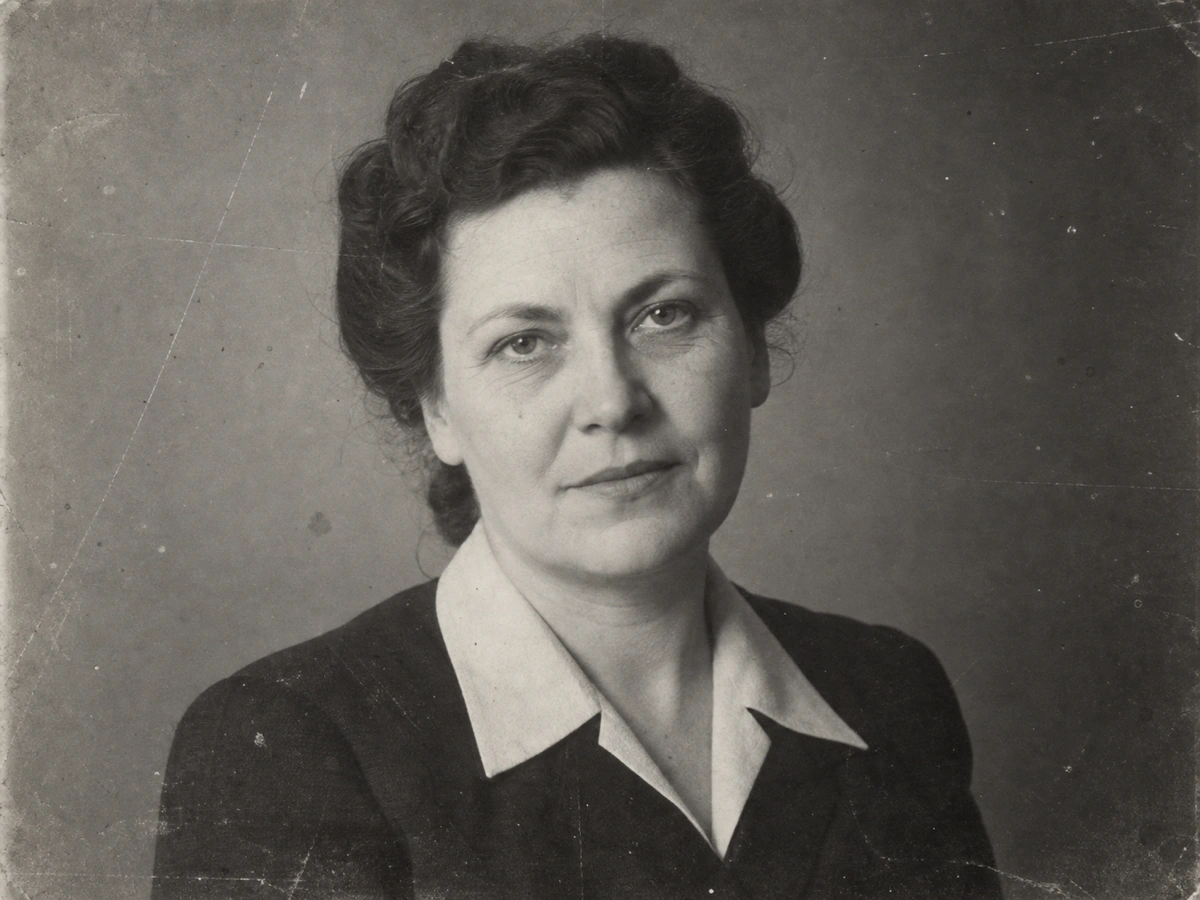
Which old photo damage restoration can try to improve
Automatic restoration is useful when the photograph still contains structure. Narrow scratches, dust spots, small creases, mild fading, scanner noise, JPEG blocks, and light softness can become less distracting. The model can only work from evidence that remains in the pixels.
It cannot recover a face that was torn away, invent a missing corner, prove original paint colors on a black-and-white print, or turn a tiny chat thumbnail into a sharp archive. If the source is already a screenshot of a screenshot, restoration often smooths identity instead of repairing it. Keep the paper original. Make a new scan when you can.
Research on digital restoration separates structured damage such as scratches from unstructured degradation such as blur and fading. The method paper Bringing Old Photos Back to Life is a useful technical background. It is not a promise that any consumer tool will match a paper's figures.
How to choose among restore, colorize, and upscale
Match the first tool to the problem you can see. Mixing jobs in one click makes the result harder to judge.
| Problem | First tool | What it will not do |
|---|---|---|
| Scratches, dust, small creases, mild fading | Photo Restoration | Rebuild missing pieces or guarantee historical color |
| Black-and-white print that you want in color | Restore first, then Image Colorizer | Recover the original dyes. Color is inferred |
| Soft or small scan you want larger | Restore first, then Image Upscaler | Prove detail that was never captured |
| Severe tears, flaking emulsion, or a legal archive | A photograph conservator | Digital viewing copies are not conservation treatment |
Save a restored master before you colorize or enlarge. Each later step costs extra credits. Colorizer runs cost 20 credits. Upscale costs 15 credits at 2× and 25 credits at 4×. Confirm those numbers on each workbench before you pay.
How to prepare the original photograph
Handle the print with clean, dry hands or nitrile gloves. The Library of Congress guidance on photograph care asks for a cool, relatively dry, stable storage environment and photo-safe enclosures that pass the Photographic Activity Test. Do not peel a print off a stuck album page, soak it, or force a brittle mount. If the object is flaking, nitrate film, or otherwise unstable, stop and ask a conservator.
For the scan, use even light, avoid glare, and keep the camera or scanner square to the print. Capture the full sheet, including borders that carry writing. Export a full-resolution file, then leave that file untouched. Restoration should write a separately named derivative.
Photo Restoration accepts one image up to 5 MB, with each side between 256 and 4,096 pixels and no more than 16 megapixels. A phone photo of a photo under a lamp often fails those rules or introduces new glare. Reshoot or scan again instead of stretching a bad capture.
Confirm you have the right to process the image. Family albums usually need permission from living people in the frame. Do not upload documents you are not allowed to copy.
How to restore old photos with GPT Image 2.5 on Banana Pro AI
Open Photo Restoration. The restoration workbench sits on the first screen. You will not find a prompt box, a scratch slider, or a 2K/4K picker on this page. Those controls belong to other tools.
- Sign in. The workbench asks you to sign in before a file is selected.
- Click Upload photo and choose one supported file. Wait until dimensions appear.
- If the workbench offers a GPT Image 2.5 choice, select it and read the credit line again. If it only shows automatic conservative restoration, that is the live path. Do not invent a second model control.
- Confirm the credit cost. Current Photo Restoration billing on this site is 20 credits per run.
- Click Restore photo. The task is tracked. If the browser drops, open My Creations instead of starting a second paid job.
- Drag the split view across every face, hand, uniform, inscription, and repeating pattern.
- Download only when the result still agrees with the source. Name the file so you can tell it apart from the scan.
The GPT Image 2.5 model directory page is a separate prompt-based generator. Do not paste repair instructions there and call the output a Photo Restoration result. This tutorial stays on the restoration workbench.
Three restoration cases to review honestly
Each pair below is an illustrative before-and-after still created to show the kind of wear people bring to this workflow. They are not measured outputs from a billed GPT Image 2.5 restoration.
Light scratches on a portrait
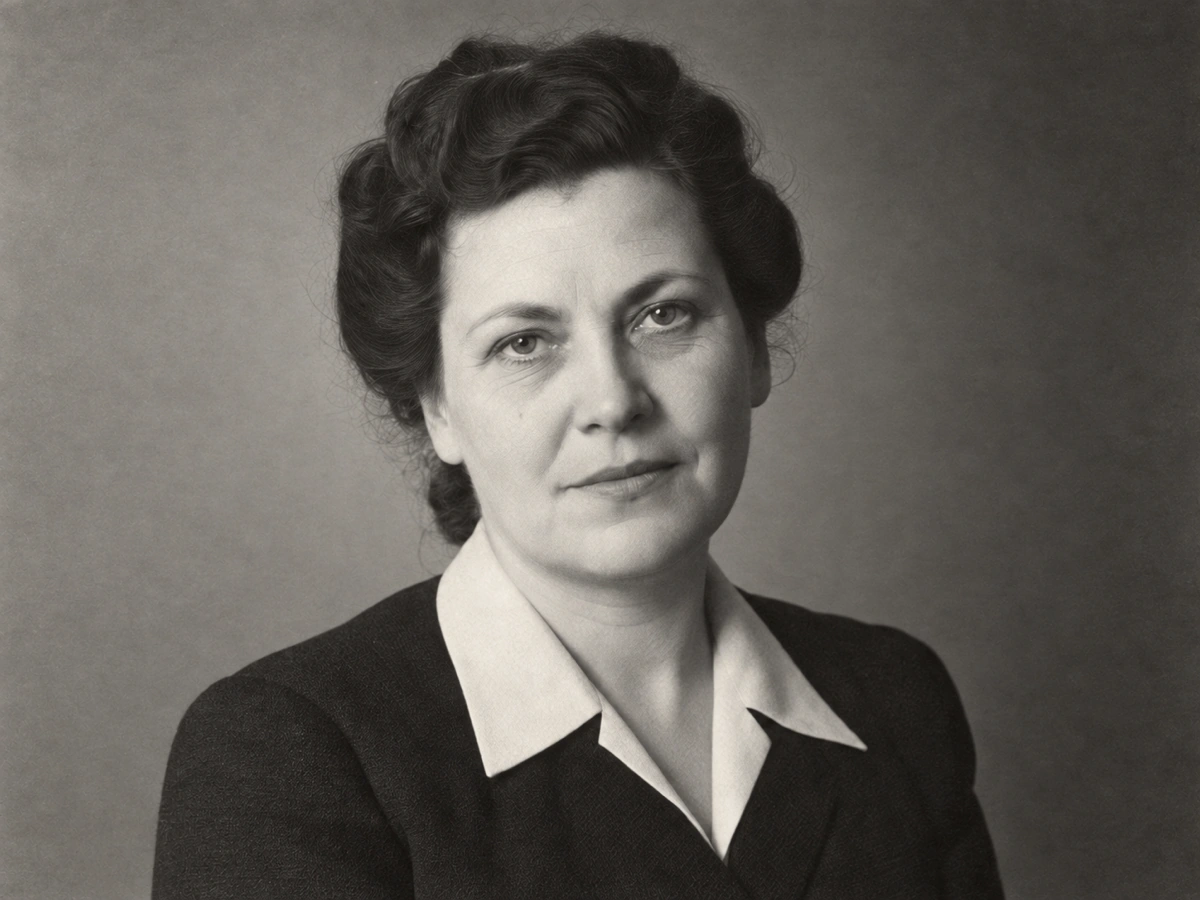
Problem. Hairline marks and dust sit on an otherwise complete face.
What to check. Identity, age, glasses, moles, and hairline should still match the scan. If the skin looks younger or plastic, keep the original.
Accept or stop. Accept a copy that is easier to view and still recognizably the same person. Stop if features migrated.
A faded family group
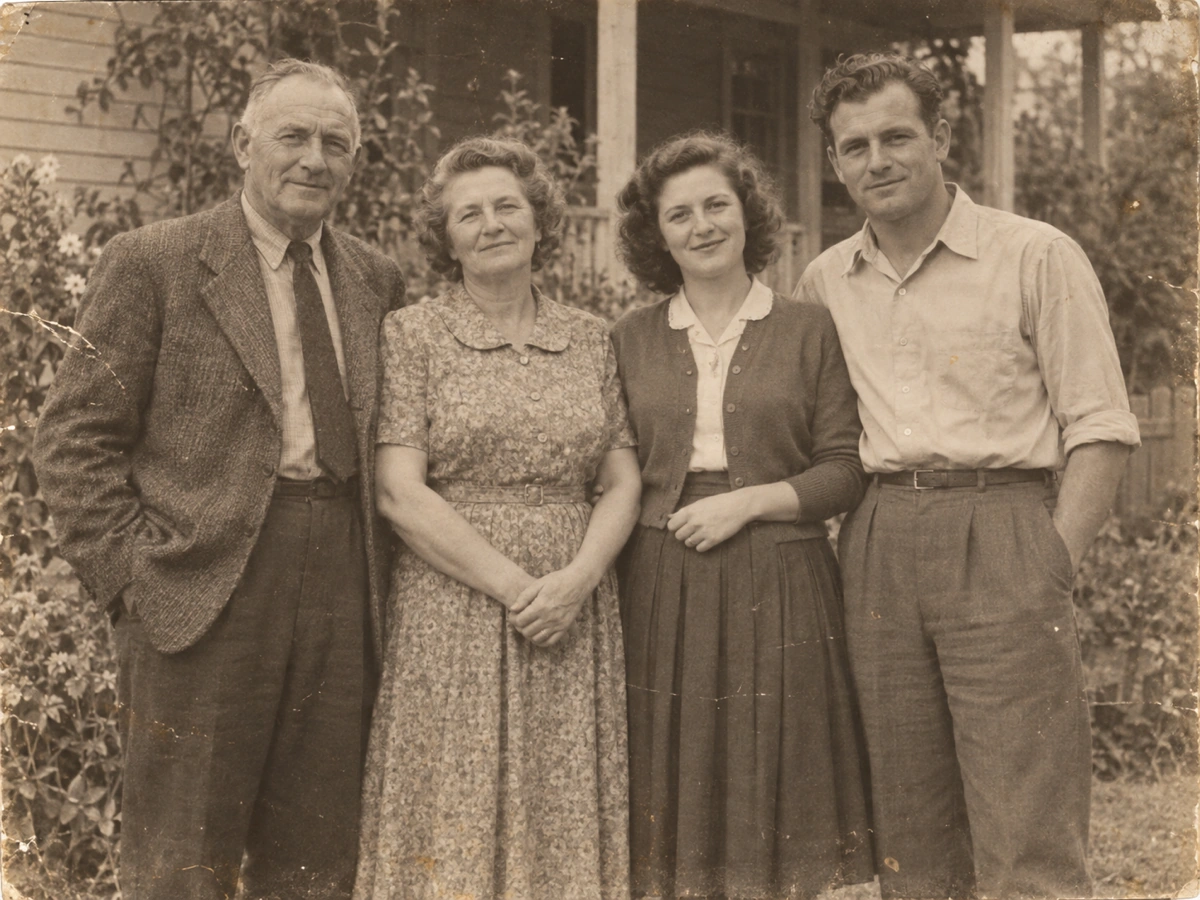
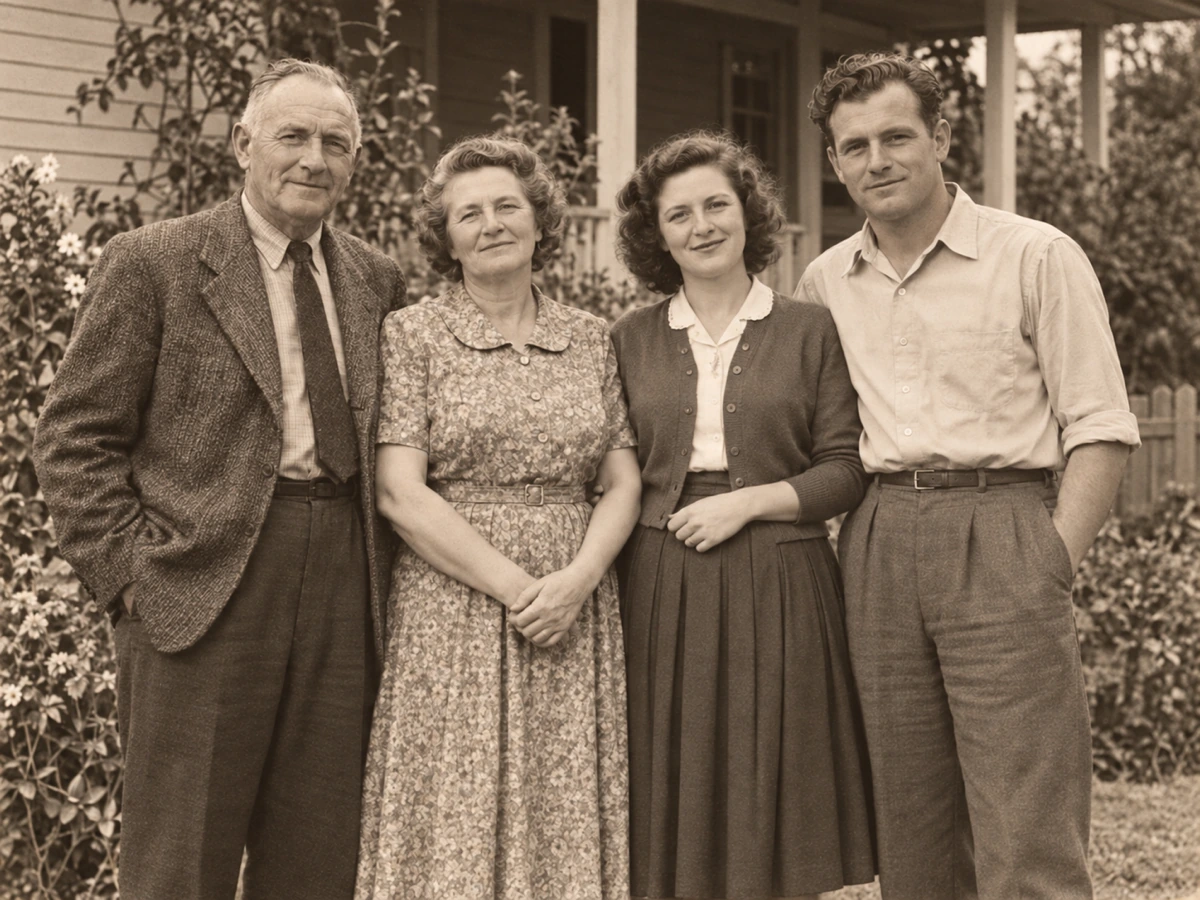
Problem. Low contrast hides clothing edges and smaller faces.
What to check. Count the people. Compare ears, collars, and background objects one by one. Group photos fail when two relatives start to look alike.
Accept or stop. A clearer viewing copy is useful for sharing. It is not a census record. If a face was invented, discard the derivative.
Creases that still leave structure
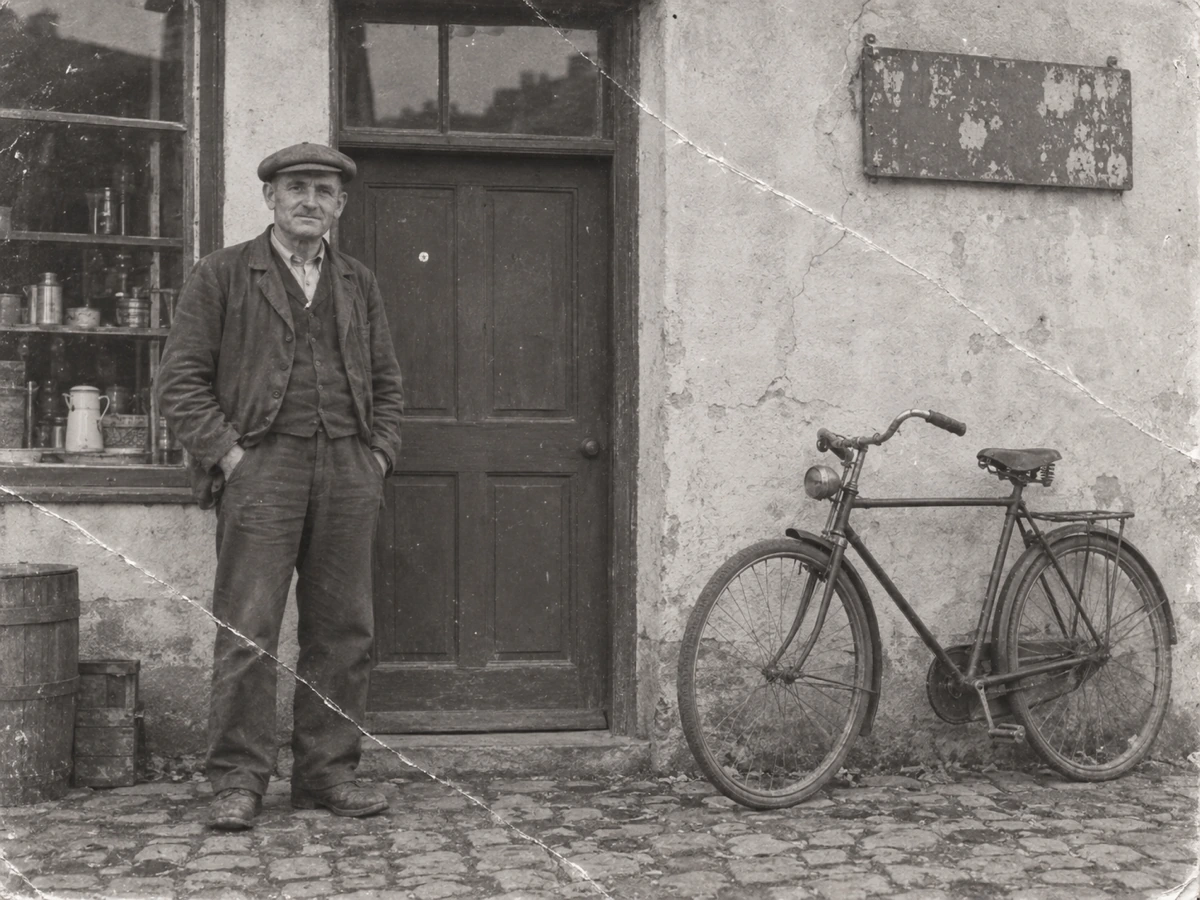
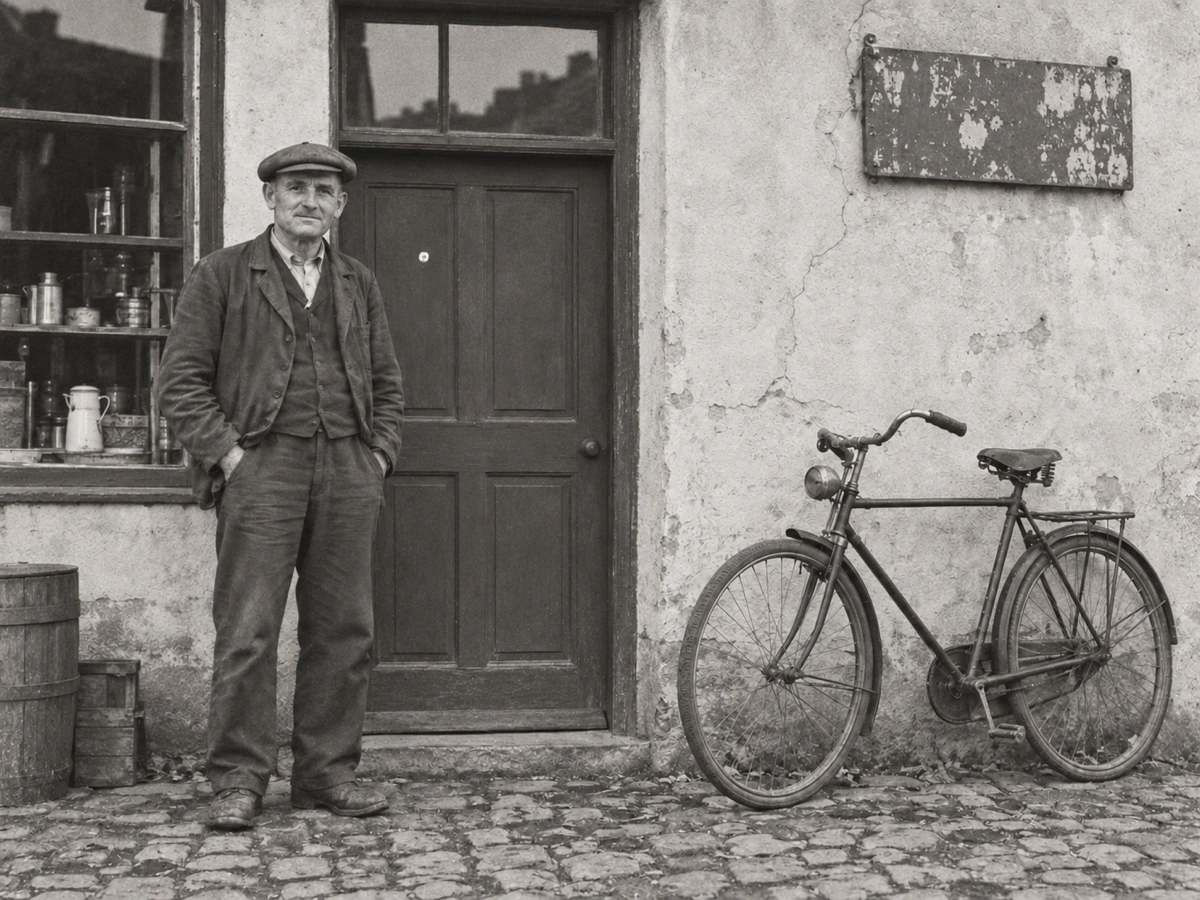
Problem. Folds interrupt the image, but the subject is still there on both sides of the crease.
What to check. Writing, jewelry, architecture, and repeating wallpaper. Crease repair sometimes hallucinates letters.
Accept or stop. Small fold marks that remain are honest. A perfectly flat print with new text is not. Keep remaining defects when they protect identity.
When to colorize or enlarge after restoration
Color and size are separate decisions. Restore first, save that file, then open Image Colorizer only if you want inferred color on a black-and-white copy. Grayscale pixels do not store hue. Several palettes can fit the same brightness. Use family notes or uniform records when the color has to be more than a guess.
Use Image Upscaler when you need more pixels for a print after the restored file is already acceptable at 1K. Enlargement does not recover shutter speed or lens resolution from 1960. It estimates extra samples. Check hair, type, and fabric again at the larger size.
Do not run colorize or upscale on the only copy of a scan. Keep the archival file, the restored derivative, and any later variants under different names.
What to do when faces or text look wrong
Common failure modes are younger-looking skin, merged relatives, warped hands, melted lettering, and glossy plastic grain. Those are reasons to stop, not to spend more credits hoping the next run will remember the person.
Go back to the original scan. Try a cleaner capture if glare or motion blur caused the miss. If a large region is missing, automatic restoration is the wrong tool. The Library of Congress leaflet on deteriorated photographs is clear that single-item conservation is specialized work. A viewing copy from Banana Pro AI does not replace that.
Do not loop the same damaged upload. Each paid run is a new guess. Privacy still applies. Uploads follow the Privacy Policy. You are responsible for having the right to process the image under the Terms of Service.
A checklist before you share or print
- Faces and headcount match the scan.
- Clothing, jewelry, and background objects did not appear or vanish.
- Handwritten captions are still the same letters, or you left the fold unrestored.
- Grain still looks photographic, not airbrushed.
- Color, if you added it later, is labeled as inferred.
- The downloaded pixel size is what you expected. Photo Restoration returns 1K.
- The file name says it is a restored copy, not the master scan.
GPT Image 2.5 automatic restore vs professional photo conservation vs colorize then upscale
GPT Image 2.5 automatic restore. Best when you need a careful viewing copy from a complete scan. You upload one file, pay the listed credits, and inspect a split view. You cannot paint one scratch or lock a single tooth. The result may reconstruct plausible texture. That is useful for reading a photo. It is not a forensic original.
Professional photo conservation. Best for flaking binders, broken glass, nitrate film, or objects with museum value. Conservators stabilize the physical object. They do not owe you a flattened JPEG. Cost and time are higher. Control and accountability are higher too.
Colorize then upscale. Best only after a restored file already looks true. Colorizer infers hues. Upscaler estimates extra pixels. Running those first can bake guessed color or invented detail into the only copy you keep. Use them as later, optional steps with their own credit costs.
There is no ranking that makes one path always cheaper or always more accurate. Choose by the object in your hands and by whether you need a file to look at or an object to keep.
FAQ
Can I restore a blurry chat image? Only if it still meets the size rules and still shows a stable face. Many messaging downloads are too small or too compressed. Restoration will not invent a sharp archive from a 200-pixel crop.
Will a black-and-white photo come back in color? No. Photo Restoration is instructed to keep the source monochrome or color state. Use Image Colorizer afterward if you want a separate inferred-color copy.
What about a print that is torn in half? Automatic restoration is a poor fit. Align a new photograph of both pieces if you only need a viewing file, or speak with a conservator before you force the object.
Is the file private? You must be signed in. Tasks appear in My Creations. Read the Privacy Policy for how uploads are handled. Do not upload images you are not allowed to process.
Can I print the result? You can print a derivative you accept after inspection. 1K is often enough for a small print and weak for a large poster. Upscale only after you like the restored file. Printing does not make inferred detail historically true.
Restore an old photo on Banana Pro AI
If the goal is to restore old photos with GPT Image 2.5, use the live Photo Restoration workbench rather than a prompt generator. Upload a scan you are allowed to process, run the automatic repair, and keep the original beside the download. Open Photo Restoration to begin.
