
Qwen-Image-2.1 is Qwen's next open-weight image model, and it puts image generation and image editing in one model instead of two. ModelScope lists its release for September 20, 2026, 13:00 UTC (21:00 UTC+8), and Hugging Face Diffusers merged the QwenImage21Pipeline on September 18, 2026, so the code path is already public. This guide separates what is confirmed from what is not, shows how to run the model, and gives you three prompts you can reuse.
| Item | What is confirmed |
|---|---|
| Model | Qwen-Image-2.1, one model for text-to-image and prompt-based editing |
| Release | Listed on ModelScope for 2026-09-20, 13:00 UTC |
| Library support | QwenImage21Pipeline in Hugging Face Diffusers, merged 2026-09-18 |
| Weights and license | Published with the release; read the official model card before you rely on it |
| Best tasks | Text-heavy posters and infographics, reference-guided edits, multi-image composition |
| Try it in a browser | Qwen Image 2 image generator runs the current Qwen Image 2 model today |
What is Qwen-Image-2.1?
Qwen-Image-2.1 is the latest entry in the Qwen-Image family. The official ModelScope card describes it as one model that combines high-quality image generation with flexible editing, balancing output quality against inference efficiency. Its two stated highlights are efficient image generation (quality, speed, and a lightweight design) and flexible creative control (different image inputs, outputs, and local edits inside one workflow).
The Diffusers documentation gives the technical shape. A Qwen3-VL model encodes the text prompt and any condition images together, and a single-stream transformer then denoises the target image. The pipeline notes three details that matter when you write prompts:
- One joint sequence. Text and condition images are encoded together, so a condition image occupies the vision slots the encoder reserved for it.
- Block-causal attention. Attention follows
(q_idx >= kv_idx) or same_image_block, so the joint sequence is causal while each image block stays internally bidirectional. This is a change from earlier QwenImage transformers. - No guidance by default. The recommended defaults are 40 steps with classifier-free guidance off (
true_cfg_scale=1.0). Turning guidance on needs a negative prompt and doubles the work per step.
The VAE is a 64-channel model that compresses 16x spatially, and the default output resolution is 1024. You can read the exact sampler arguments in the QwenImage21Pipeline documentation.
What is released, and how can you use it?
Two things are already public. The Qwen-Image-2.1 ModelScope page exists as the official home for the release and names Qwen/Qwen-Image-2.1 as the planned artifact. The Diffusers integration merged on September 18, 2026, which means the pipeline code, model classes, and tests are in the library before the weights go live.
Everything else — the license, the downloadable files, and the final model card — should be read from the official page when the release lands. Do not treat a merged library pull request, a ComfyUI landing page, or a third-party roundup as proof of the license or the weight files.
If you self-host, the documented entry point is short:
import torch
from diffusers import QwenImage21Pipeline

pipe = QwenImage21Pipeline.from_pretrained("Qwen/Qwen-Image-2.1", dtype=torch.bfloat16).to("cuda")

# Text-to-image
image = pipe("A capybara wearing a wizard hat, oil painting").images[0]
image.save("t2i.png")

# Image-conditioned editing
edited = pipe("Move it to a snowy mountain top", image=image).images[0]
edited.save("edit.png")
You need a working CUDA or equivalent GPU environment, the latest Diffusers from source, and enough VRAM for the transformer plus the Qwen3-VL encoder. The documentation does not publish a minimum GPU, so benchmark on your own hardware instead of assuming a number.
If you would rather not manage a GPU, the browser route is faster. Banana Pro AI's Qwen Image 2 image generator currently runs Qwen Image 2, the 2026 model before 2.1. Use it for the workflows below and check the workbench label for the model that a task actually ran; do not relabel a Qwen Image 2 result as Qwen-Image-2.1.
Three Qwen-Image-2.1 workflows with copyable prompts
Each case below has a goal, the input it expects, a full prompt, and one fix for the most common failure. The prompts are written for Qwen-Image-2.1's unified generation and editing path, so the same wording works whether you start from text or attach a reference image.
How the examples were made. Every image in this section is an original illustration generated with OpenAI image generation in Codex. None of them is a Qwen-Image-2.1 output, because the weights were not downloadable when this guide was prepared. Treat the images as target references for the prompts, not as a benchmark of 2.1.
1. Text-rich poster from a prompt
Goal: produce a print-ready poster where the headline, subhead, date, and venue are readable in one pass. This is the task Qwen-Image models are best known for.
Input: none. Text-to-image.
Design a portrait coffee shop opening poster. The headline reads "RIVER BEAN" in large condensed capitals, and below it the word "GRAND OPENING". A smaller subhead reads "Sat 12 Oct, 9 AM" and below that "18 Mill Lane". Warm morning light, a ceramic cup on a wooden counter, scattered coffee beans, soft realistic shadows, cream and deep-brown palette. Clean grid layout, generous white space, large legible type, print-ready 2K poster. No extra words, no misspelled text, no watermark, no logo.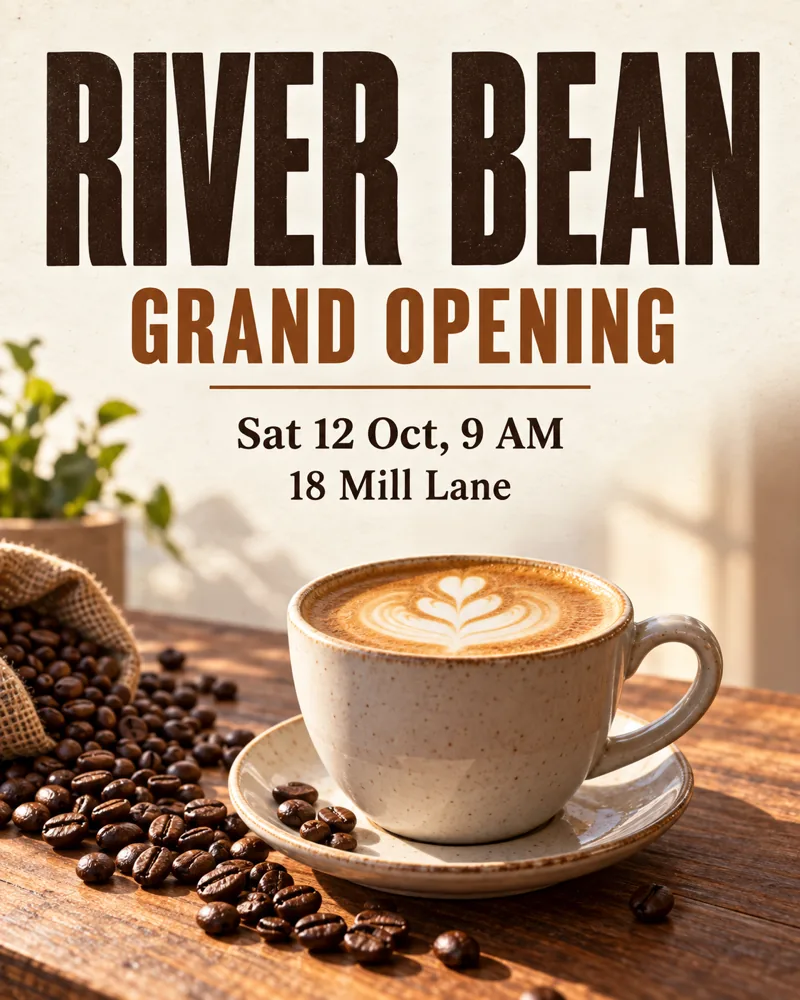
Illustration: the finished poster a text-to-image prompt like this one targets.
What to watch: long subheads are where small text breaks down first. If the date or street line comes back garbled, shorten it to two words per line or ask for a larger type size. Compare the result at 100% zoom before you send it to print, and keep the exact text short enough that a reviewer can check every character.
If you want a faster loop while you iterate on the wording, create an AI poster in the browser first, lock the copy and layout, then move the final prompt to a self-hosted 2.1 run.
2. Product photo, new scene
Goal: keep a product exactly as photographed and change only its surroundings. This is the reference-guided editing path, not a redesign.
Input: one studio product photo on a plain background.
Keep the uploaded leather backpack exactly as it is: same shape, proportions, stitching, buckles, hardware, color, and leather texture. Place it on a weathered wooden bench in a sunlit alpine cabin. Add a folded wool blanket to one side and a pair of hiking boots slightly out of focus in the background. Warm afternoon light from the left, soft realistic contact shadow under the bag, shallow depth of field. Photorealistic commercial product photograph, portrait 4:5. Do not redraw the product, do not add logos or text.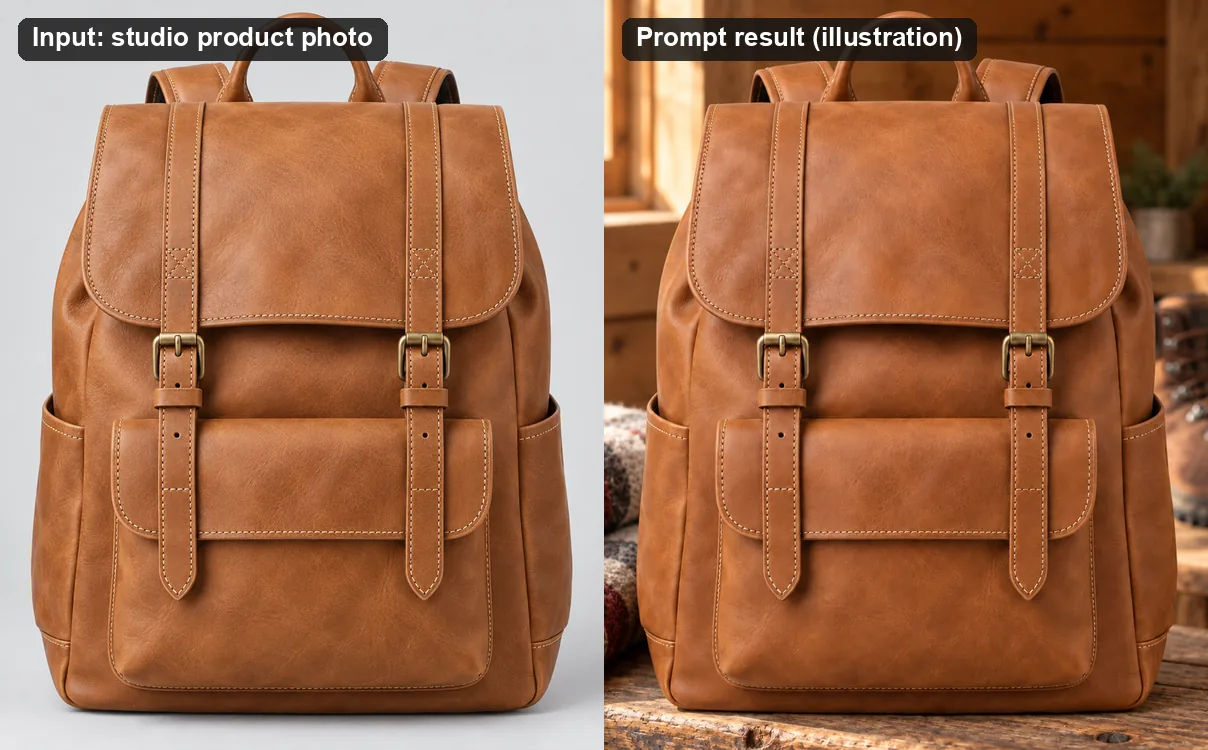
Illustration: input (left) and the scene-edited result (right). The product should not change between the two.
What to watch: editing models sometimes "improve" a product while they move it — a restitched seam, a brighter buckle, or a cleaner logo. List the parts that must not change, then compare the input and output side by side at full size. If the product drifts, lower the amount of change in the prompt and describe only the new environment.
To run the same before-and-after on your own catalog image, create product photos with a reference upload instead of rebuilding the item from a text description.
3. Multi-image composition
Goal: combine two separate references — an object and a scene — into one believable photo. Qwen-Image-2.1 accepts a list of condition images, and the order you pass them is the order the model reads them.
Input: two images, flowers first and the room second.
Use the first image as the flowers and the second image as the room. Place the flowers from the first image on the wooden side table in the second scene, matching the room's camera angle, perspective, scale, and light direction. Keep the flowers' shape, stem count, and color, and keep the room's furniture, walls, and windows unchanged. Add a soft contact shadow under the vase. Photorealistic interior photograph, natural daylight, no extra objects, no text, no people.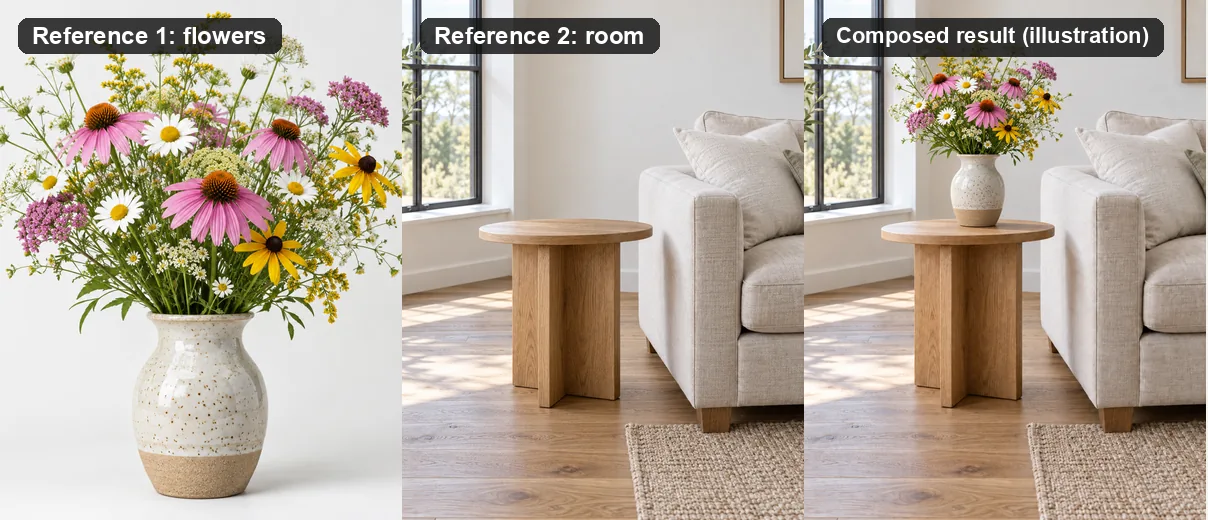
Illustration: two references (left and center) and the composed result (right).
What to watch: the most common failure is role confusion, where the model treats the second image as style instead of scene. Name each input by position ("the first image as the flowers") and keep the list to two references for a clean result. If one reference disappears, restate its role in the first sentence and run again.
Multi-reference cleanup is the same job as any other prompt edit, and you can rehearse it in the browser when you edit an image with a prompt.
How to try a practical image workflow today
You can build the whole workflow before the 2.1 weights are on your machine. Use the current Qwen Image 2 model, then swap the pipeline when 2.1 is available.
- Pick one task: a text-rich poster, a product scene, or a two-reference composition. One task per run keeps the result easy to judge.
- Write the prompt with a role line, the exact text or product invariants, one light direction, and one exclusion list.
- Open the Qwen Image 2 image generator, choose the model shown on the workbench, and generate at the highest resolution the tool offers.
- Compare the result with your source or your brief. Check every text string, every product edge, and every reference object.
- Change one thing at a time. Rewrite the failure, not the whole prompt.
- Download only the run that passes, and keep the prompt next to the file so you can reproduce it.
When Qwen-Image-2.1 is live, the same prompts move over unchanged. The pipeline call is QwenImage21Pipeline.from_pretrained("Qwen/Qwen-Image-2.1"), and image editing uses the same call with an image= argument. For multiple references, pass a list to image, remembering that the order becomes the read order.
Qwen-Image-2.1 vs Qwen Image 2
Qwen Image 2 is the February 2026 model that Banana Pro AI runs today. Qwen-Image-2.1 is the next step in the same family, not a rename of 2. Compare them on what each one is documented to do, and leave the unknowns open.
| Question | Qwen Image 2 | Qwen-Image-2.1 |
|---|---|---|
| Generation and editing | Unified generation and editing | Unified generation and editing |
| Text rendering | Strong long-text and layout rendering | Professional typography, per the release card |
| Output resolution | Native 2K | Native 2K, per the release card |
| Text/condition encoding | Earlier QwenImage transformer stack | Qwen3-VL encoder with block-causal attention |
| Multiple condition images | Model-dependent | Documented list input with ordered blocks |
| Availability here | Live on the Qwen Image 2 page | Pipeline code public; weights and license with the release |
Treat the two rows you cannot verify locally — final benchmark numbers and the license — as open until the official model card settles them. A merged Diffusers pull request proves that the code exists; it does not prove a speed or quality advantage over Qwen Image 2.
FAQ
Where can I download Qwen-Image-2.1?
The release is hosted on the Qwen-Image-2.1 ModelScope page, which names Qwen/Qwen-Image-2.1 as the planned artifact. Read the model card and license on that page, and check the Qwen-Image GitHub repository for the official announcement before you download.
Can I use Qwen-Image-2.1 online without a GPU? Not through this site today. Banana Pro AI runs Qwen Image 2 on its model page. Hosted 2.1 demos depend on the release, so confirm the model label before you trust an online result.
Can Qwen-Image-2.1 edit images, not just generate them? Yes. The Diffusers pipeline calls the same model for text-to-image and image-conditioned editing, and it accepts one image or a list of condition images. Editing quality still depends on the prompt and the source image.
Is Qwen-Image-2.1 free? Open-weight models are usually free to download, but the license, the GPU you need, and any hosted service you use all carry their own terms. Check the official license at release instead of assuming "open source" means free to run anywhere.
What is the difference between Qwen-Image-2.1 and Qwen Image 2? Both unify generation and editing with native 2K output. Qwen-Image-2.1 moves to a Qwen3-VL encoder and a single-stream block-causal transformer with ordered multi-image conditioning. Qwen Image 2 is the earlier 2026 model and is the one live on this site.
Try Qwen Image 2 while you wait for the weights
The fastest way to prepare for Qwen-Image-2.1 is to practice the three workflows on the model you already have. Open the Qwen Image 2 image generator, run one of the prompts above, and keep the wording that survives. When the 2.1 weights are on your machine, the prompts, the reference images, and the review checklist all carry over.
