
To make a Bicep Heart AI video, upload one clear waist-up photo of an adult to a Bicep Heart generator. The preset animates one arm into a flex, then curls the other hand against the bicep to form a small heart. Choose your resolution and sound, generate the clip, and watch the last few seconds before downloading. The two generators in this guide list a roughly seven-second vertical MP4.
What is the Bicep Heart trend?
The Bicep Heart is a one-person pose. Raise one fist beside your head as you flex that arm. Bring your opposite hand across your chest and curl it into a loose C high on the flexed arm, with the thumb pointing down. The gap between the curled hand and the bicep makes the heart. Hold it long enough for someone watching at phone size to see the shape.
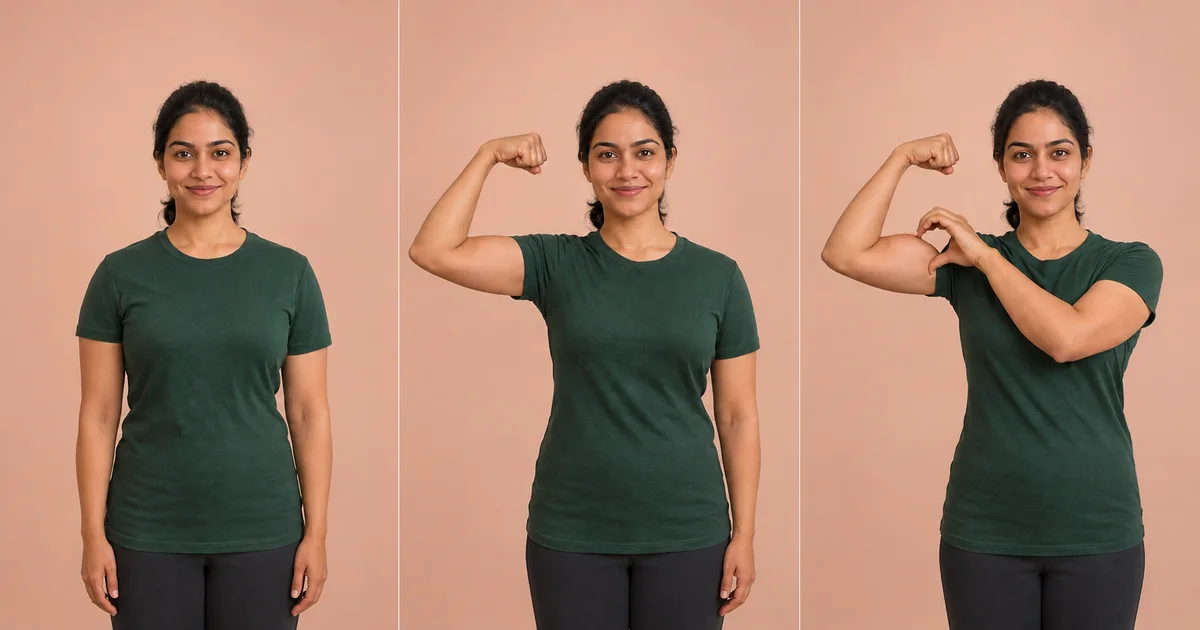
AI-generated storyboard illustrating the pose. The subject is fictional.
Choose the photo before you choose the resolution
Start with a front-facing photo of one adult, framed from the waist up with both elbows, wrists, and hands visible. Leave room beside the shoulders and above the head for the raised fist. Relaxed arms are fine. Short sleeves make the edge of the upper arm easy to see, and soft front light keeps the face clear.
- Tight selfie? Step back and take a new photo. Leave space for the elbow to move outward.
- Hands in pockets or arms crossed? Take a second shot with your hands visible and a little space between your arms and torso.
- Group photo? Use a solo shot with both arms intact. Get the person's permission to animate and share their likeness if you use someone else's photo.
Both generators list JPG, PNG, and WebP uploads up to 10 MB, with a minimum of 300 × 300 pixels. Choose a sharp photo even if a smaller file meets the upload limit.
Make the video in four steps
- Watch an input-to-video example. Check that the example shows the relaxed opening, the flex, and a held heart. You can compare the starting portrait with the matching clip and see how much room the elbows need on Bicep Heart AI.
- Upload your waist-up photo and confirm consent. These presets supply the movement from one photo. A neutral pose is enough.
- Pick the quality and audio. Both tools list 480p and 720p, with the credit cost shown before rendering. Choose Silent if you plan to add audio when you post.
- Generate, review, and download the MP4. Watch once at normal speed and then pause on the heart. Check that the face stays recognizable and the curled hand stays distinct from the upper arm. Save the vertical clip once the pose reads clearly.
How much does a Bicep Heart AI video cost?
Both tools listed 6 credits for 480p when we checked their public pages on November 9, 2026. The 720p cost was 13 credits on Bicep Heart AI and 15 on Bicep Heart Trend AI. Check the total shown by the generator before you render. Higher resolution makes detail easier to see. If the elbow was cropped in the source photo, start with a wider photo.
Fix merged fingers, a missing heart, or face drift
Use the first visible error to decide what to change. A missing heart can show up even when the opening portrait looks fine. Scrub to the moment the second hand reaches the bicep and check where the pose breaks.
| What you see | What to try on the next take |
|---|---|
| Fingers blend into the sleeve or upper arm | Use a short-sleeved photo with both wrists visible and some contrast between the arm and the background. |
| The flex looks fine but the heart gap closes | Start with a wider crop and relaxed arms. Keep the raised fist and reaching elbow inside the frame. |
| The face changes during the reach | Reshoot facing the camera in even light. Use a sharp photo with both eyes clear. |
If you're unsure whether the heart ever opens, pause on the last second of your clip. Compare that frame with the flex, curl, and hold breakdown on Bicep Heart Trend AI.
When to film it yourself or use a custom prompt
Film it yourself if you want a free take or need to control the exact hand shape. Prop your phone upright at chest height and frame from the waist up. Start relaxed, flex one arm, curl the opposite hand near the top of the bicep, and hold for two seconds. If the hand covers the heart gap, loosen the curl and angle your elbow slightly toward the camera.
Use a custom prompt if you want to change the timing, setting, or camera. A general image-to-video tool gives you room to describe the motion. Try one simple shot first:
Vertical waist-up shot with a fixed camera. Keep the person's face, clothes, and background consistent. They raise one fist beside their head and flex that arm. The opposite hand crosses the chest and curls into a small C against the top of the flexed bicep, thumb down. Keep a visible heart-shaped gap between hand and arm. Hold the pose for two seconds.
How do you post the clip on TikTok or Reels?
Preview the 9:16 MP4 on your phone before posting. Put captions where they leave the flexed arm visible, and use audio your account is allowed to use. TikTok requires a label on realistic AI-generated video. For this clip, turn on the AI-generated content label when you post to TikTok. TikTok's AI-generated content guidance
Bicep Heart AI video FAQ
Do I need to flex in the source photo?
No. A sharp waist-up photo with relaxed arms and both hands visible is enough for the preset. The motion adds the flex and the curl.
Can I use a photo of two people?
Use a solo photo for these presets. For a two-person clip, film both poses together or make one clip per person and edit them side by side.
Can a CapCut template make the pose from a photo?
A standard edit template can trim a clip, add sound, or move a still around the frame. To show the person actually performing the gesture, start with footage you filmed or use a photo-to-video effect that animates the arms.
