
All AI Tools for Images and Video
Every Banana Pro AI workspace sits on this page, from a first draft with no source file to a finished clip ready to publish. The AI tools are grouped into Create, Edit, Enhance, and Video, so you can go straight to the group that matches the job in front of you.
Directory
All AI Tools
Create
Make a brand-new visual from a written brief when you have no source file, with workspaces such as the AI Logo Generator and AI Product Photography.
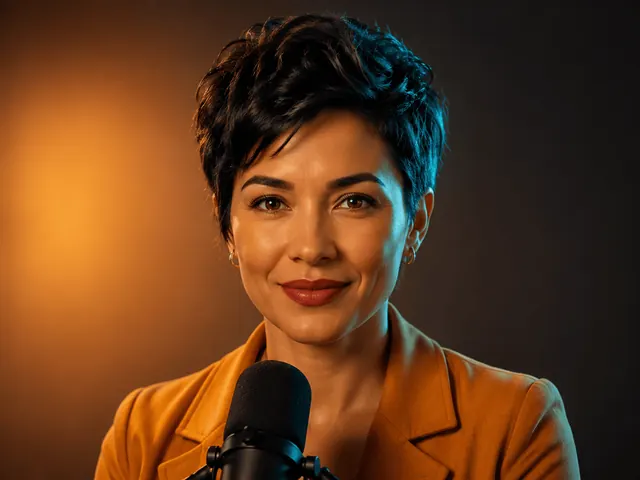
AI Avatar Generator
Create a static 2K avatar from one permitted portrait or an original written identity.
Open tool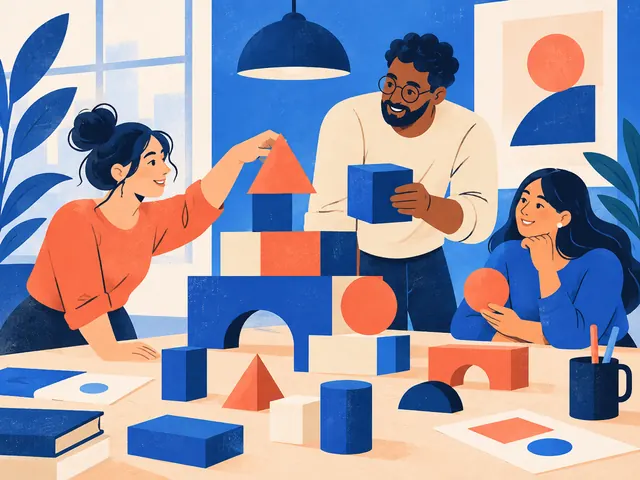
AI Illustration Generator
Turn text or one photo into flat, storybook, ink or watercolor illustrations. Download raster PNG.
Open tool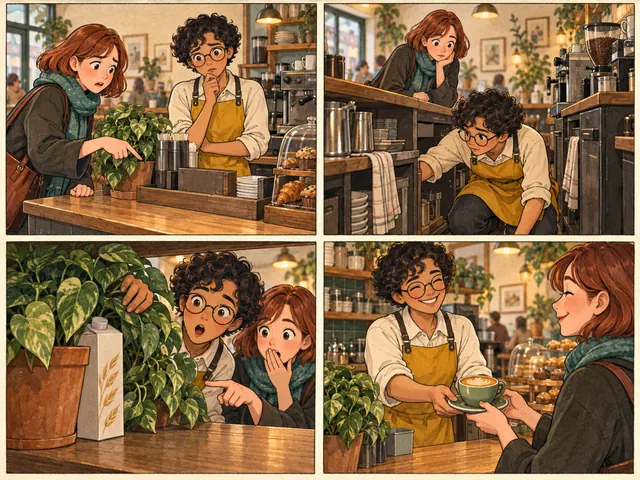
AI Comic Generator
Build three or four panel stories with editable dialogue and page or panel exports.
Open tool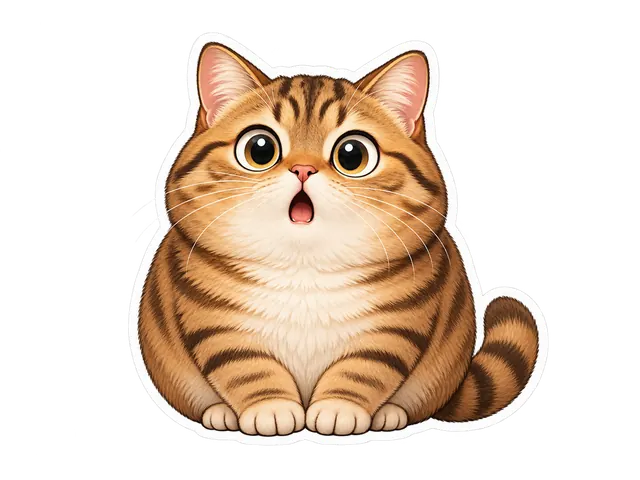
AI Sticker Generator
Turn text or one photo into a die-cut sticker and download a transparent PNG with a white outline.
Open tool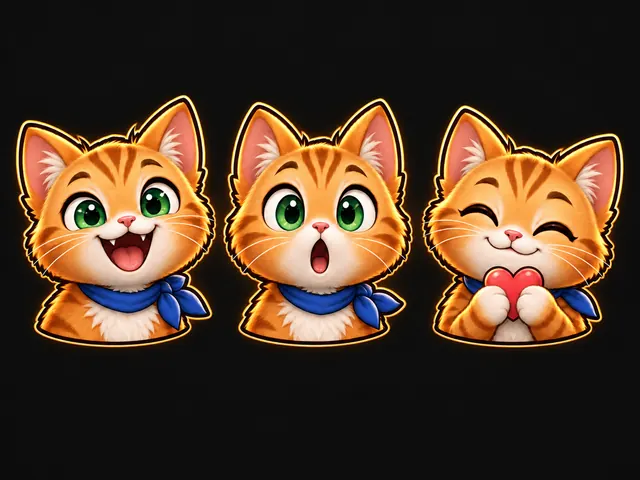
Twitch Emote Maker
Turn one character into a matching set of transparent Twitch emotes and export the official 112, 56, and 28 pixel PNGs.
Open tool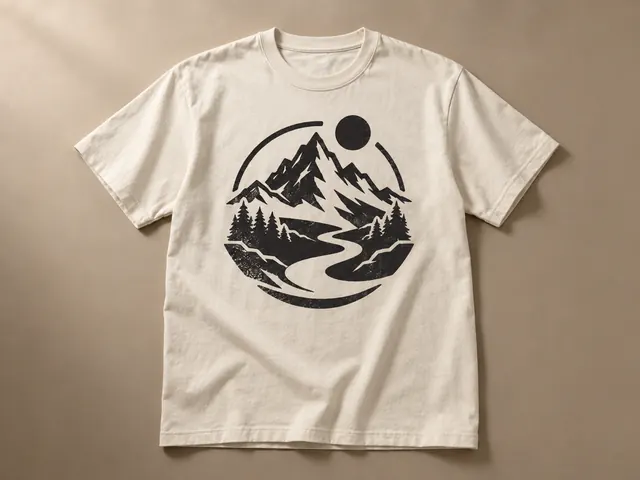
AI T-Shirt Design Generator
Turn text or one reference image into a print-ready graphic, cut it to a transparent PNG, and preview it on light and dark shirt mockups.
Open tool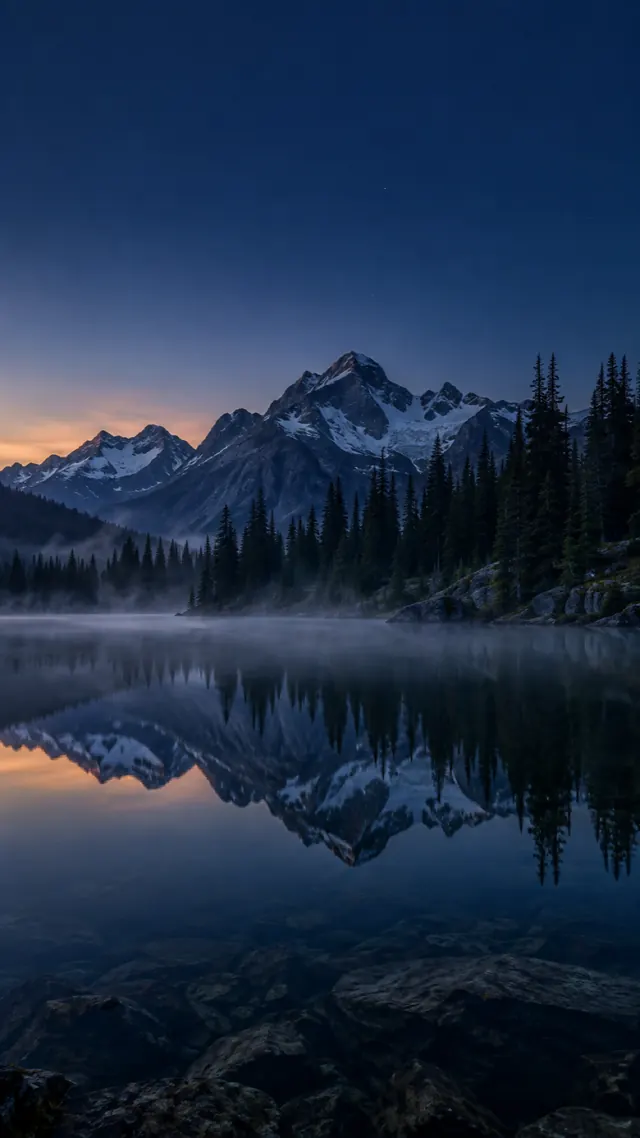
AI Wallpaper Generator
Create phone and desktop wallpapers with clock and icon clearance, then download native PNG pixels.
Open tool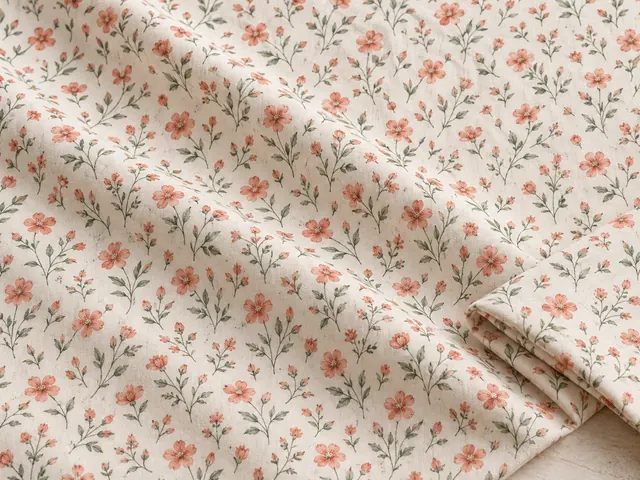
Seamless Pattern Generator
Create a repeatable square tile, check it in a free 3×3 preview, and download both PNG files.
Open tool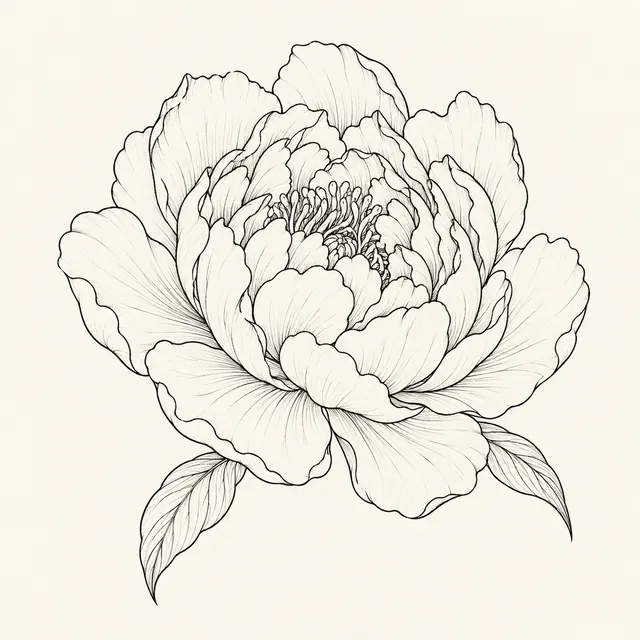
AI Tattoo Generator
Turn a written tattoo idea into a fine line, blackwork, or geometric flash-sheet concept and download a raster PNG or JPEG.
Open tool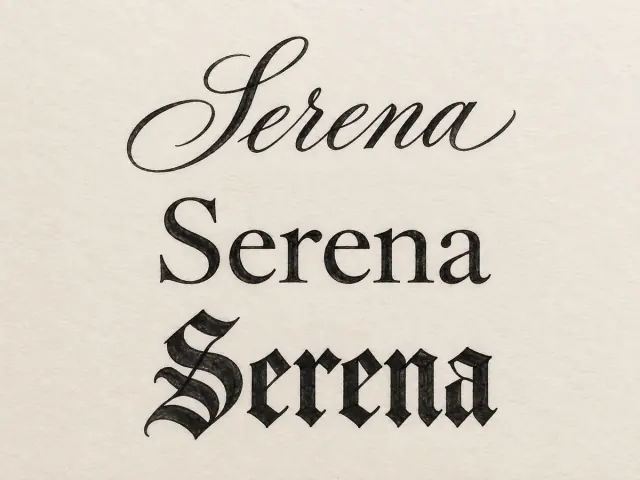
Tattoo Font Generator
Compare 19 tattoo lettering fonts, preview ink on skin tones, and export transparent PNGs or create AI lettering.
Open tool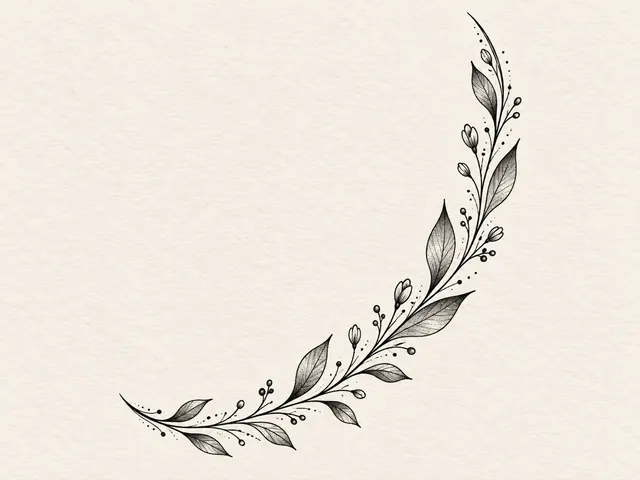
Tattoo Filler Generator
Draw a gap between tattoos and create a shape-aware filler design with transparent PNG export.
Open tool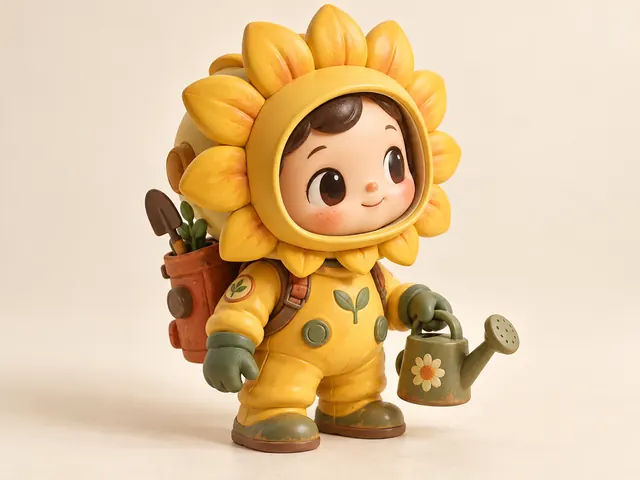
AI Toy Generator
Turn text or a reference into an original toy-style image
Open tool
AI Badge Maker
Create original brand and hobby badges from a name, motif, shape and palette.
Open tool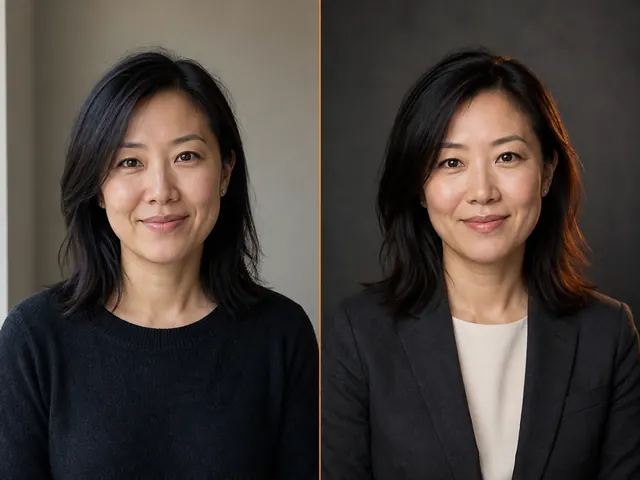
AI Headshot Generator
Turn 1–4 photos into a directed professional portrait and download a 2K PNG.
Open tool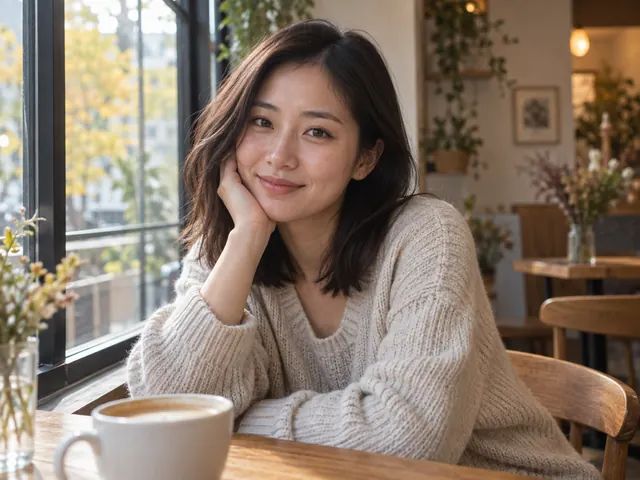
AI Dating Photos
Turn one selfie into a natural cafe, outdoor walk, or indoor dating photo and download a 2K PNG.
Open tool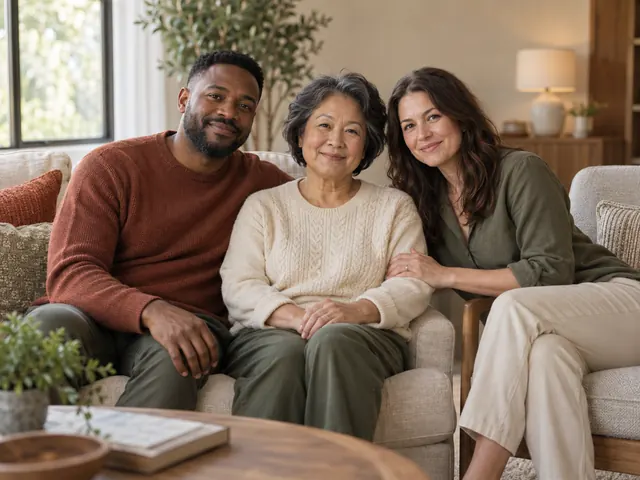
AI Family Photo Generator
Combine 2–5 individual photos into one photorealistic family portrait and download a 2K PNG.
Open tool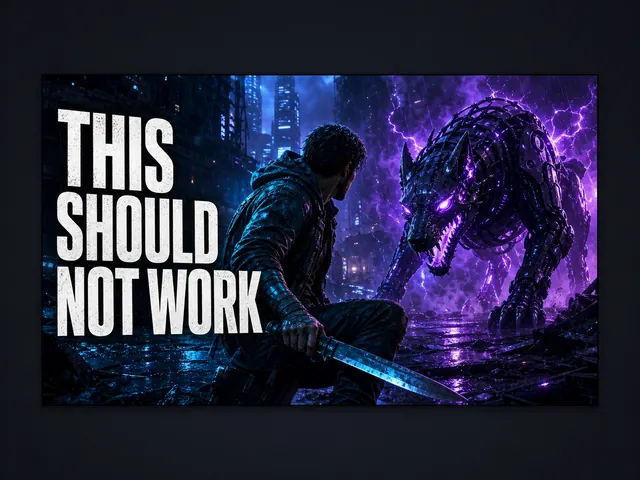
AI Thumbnail Maker
Create and review up to four YouTube thumbnail concepts in one batch.
Open tool
AI Logo Generator
Generate original logo concepts from a brand name, industry, and style.
Open tool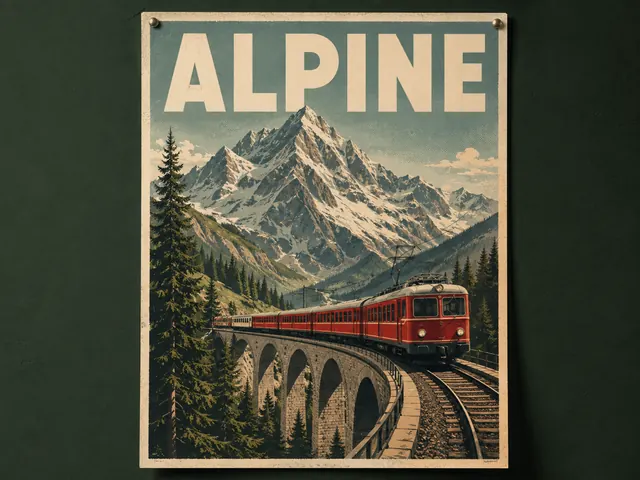
AI Poster Generator
Create polished posters from a brief, exact text, style, palette, and optional reference.
Open tool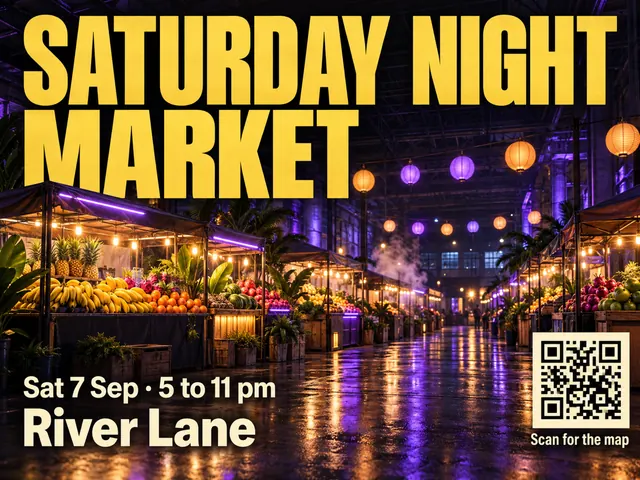
AI Flyer Maker
Generate a print flyer background, overlay exact dates and prices, then export digital PNG or 300 DPI print.
Open tool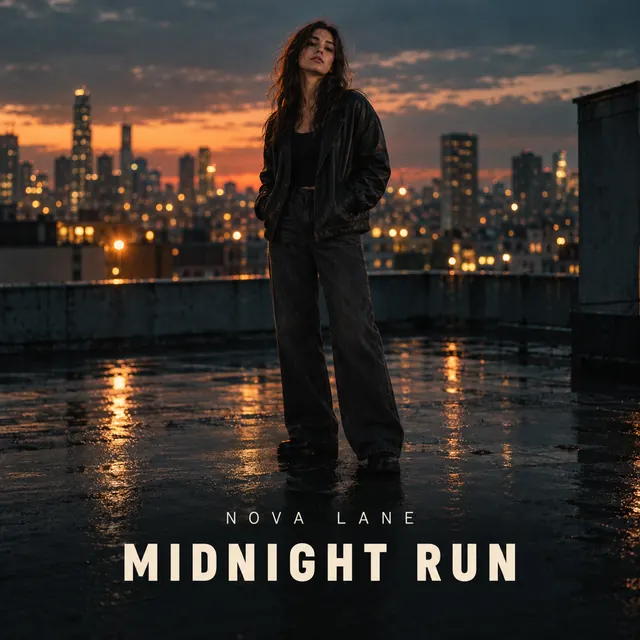
Album Cover Maker
Turn a genre, mood, and optional artist photo into a square cover, type the artist and album name, then export a 3000×3000 PNG or JPG.
Open tool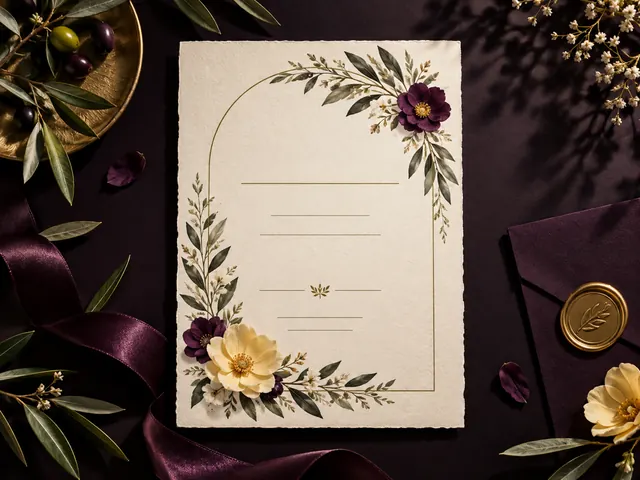
Invitation Card Maker
Create an invitation with exact event details, an AI-designed background, and digital or print exports.
Open tool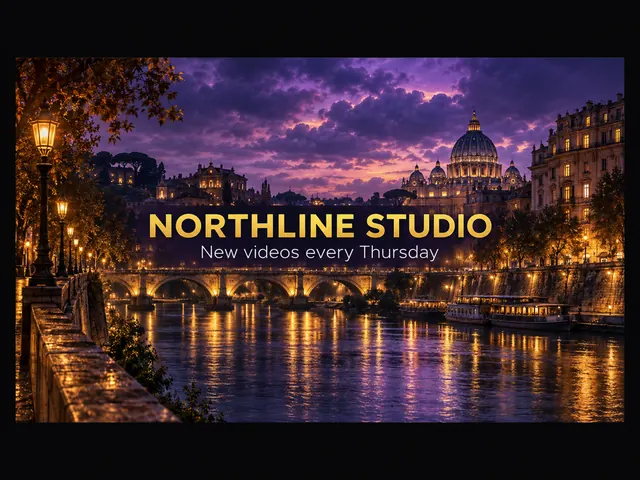
AI Banner Generator
Overlay exact titles on website, YouTube, and LinkedIn banners, then download the real pixel PNG.
Open tool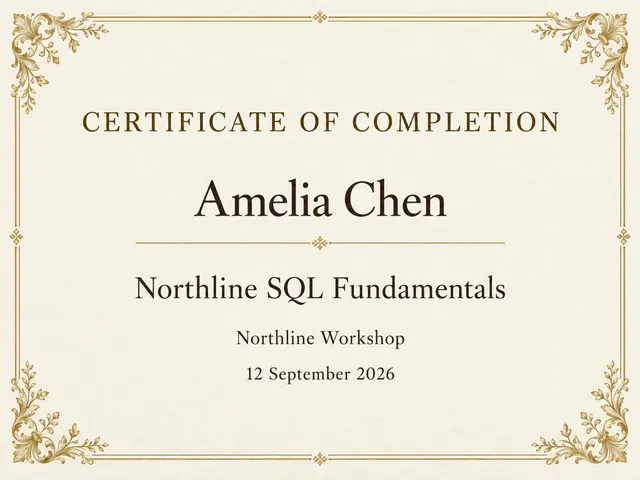
Certificate Maker
Overlay exact names on a unique unofficial certificate plate, then download PNG.
Open tool
Etsy Banner Maker
Overlay your shop name on a generated cover and download a 1600 by 400 or 1600 by 213 Etsy banner.
Open tool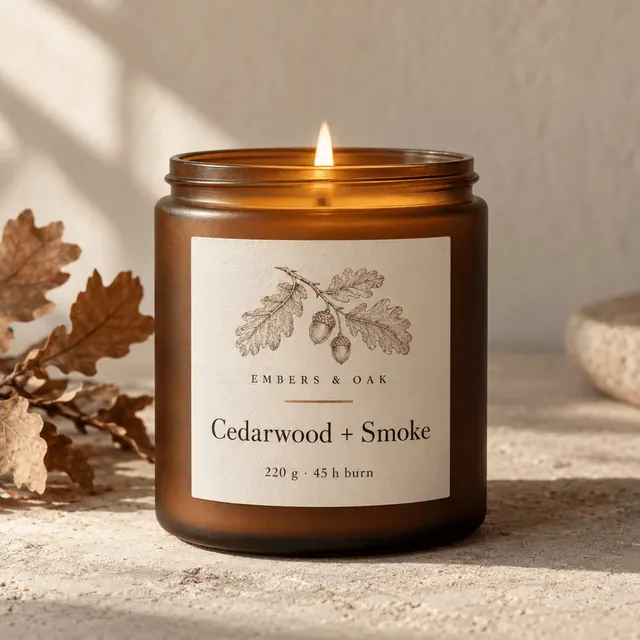
AI Label Generator
Build a bottle, jar, pouch, or hang-tag label: pick a size and shape, type the brand and product copy, and export a print-ready PNG.
Open tool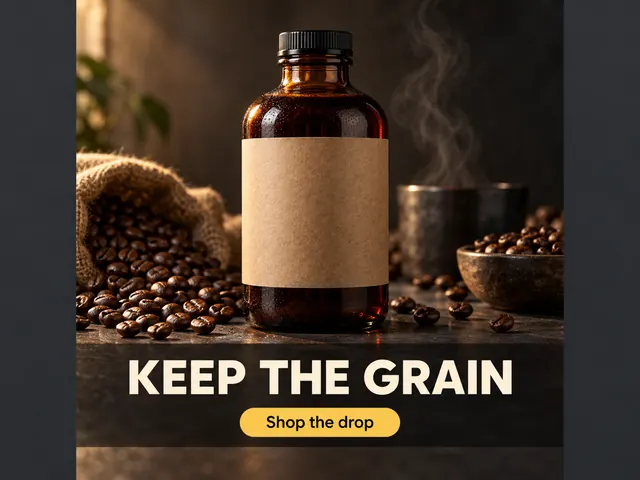
AI Ad Generator
Turn a product photo into feed, story, or display ads, overlay the headline and CTA, then download the PNG.
Open tool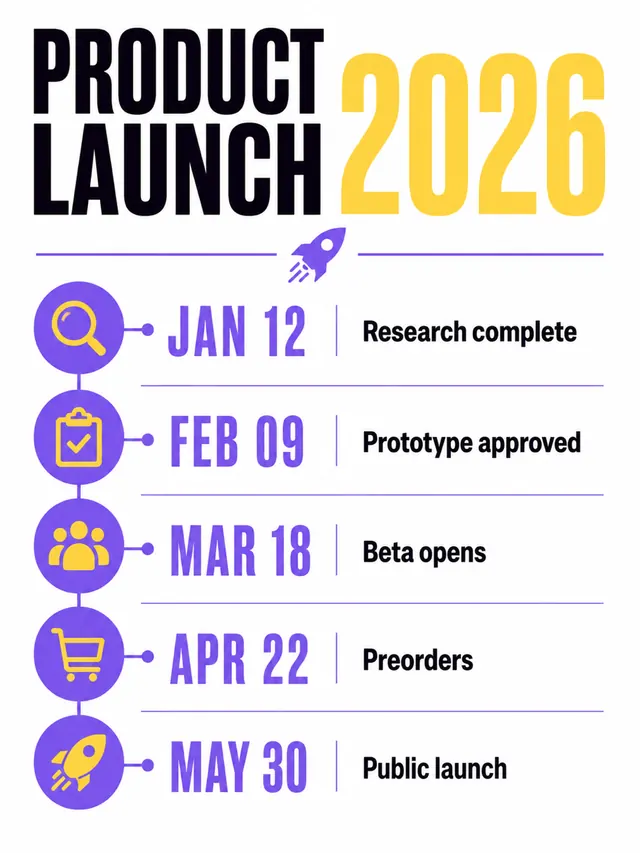
AI Infographic Generator
Turn verified facts into timeline, process, comparison, data-story, or explainer infographics.
Open tool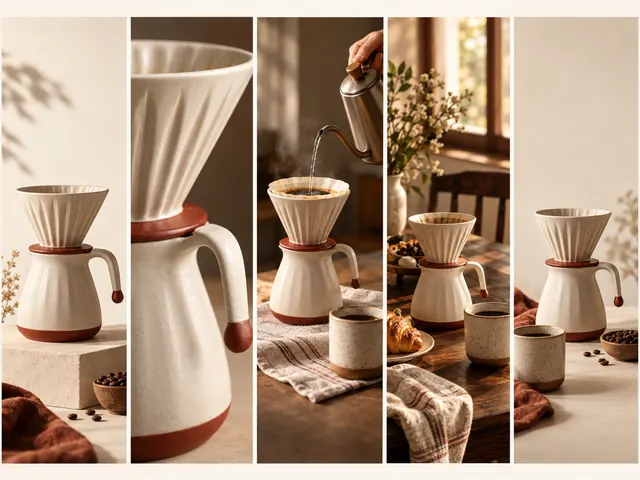
Instagram Carousel Maker
Build a three-to-six-slide story with matching visuals, editable copy, and an ordered ZIP export.
Open tool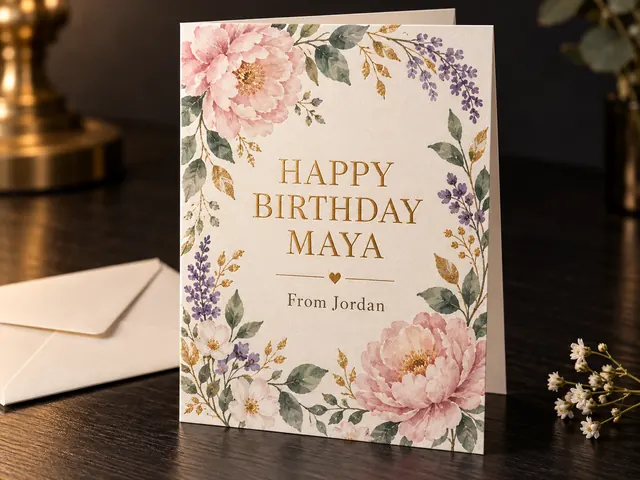
AI Birthday Card Generator
Make a named birthday card from a tone and theme, overlay the greeting as real type, then download a PNG.
Open tool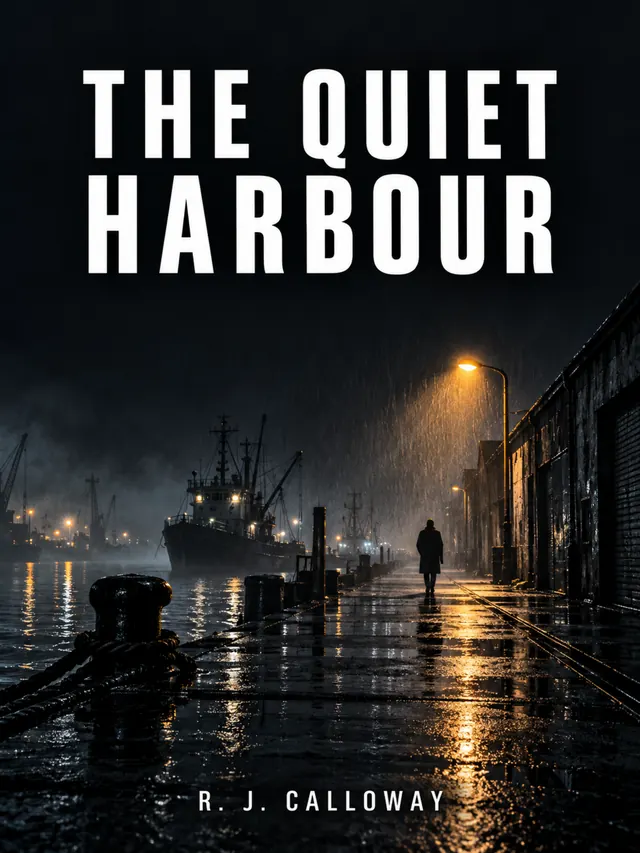
AI Book Cover Generator
Generate original cover artwork from a title, genre, and mood, then set the title, subtitle, and author as real type.
Open tool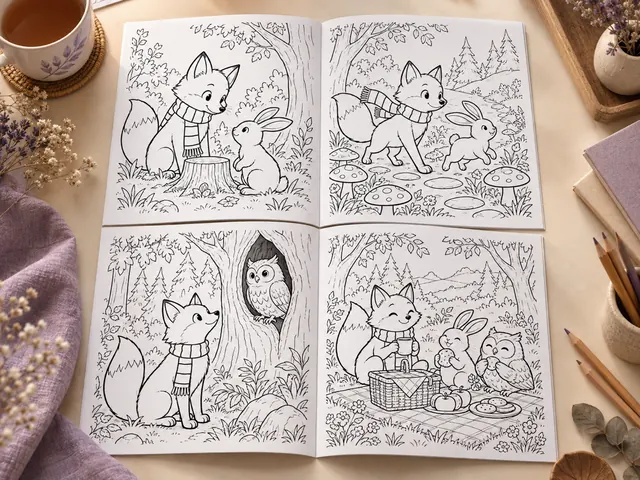
AI Coloring Book Generator
Plan four to eight coordinated coloring pages, refine scenes, and export a printable PDF and PNG ZIP.
Open tool
AI Product Photography
Turn one product image into a studio or lifestyle scene.
Open tool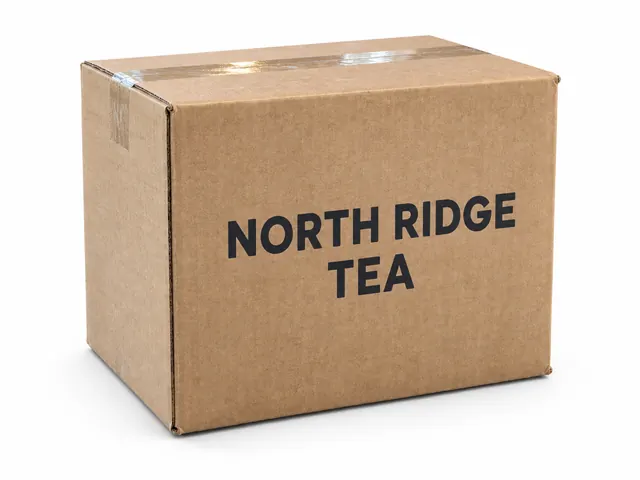
AI Product Photo Generator
Cut a catalog still on a solid color or restage one product into a lifestyle scene.
Open tool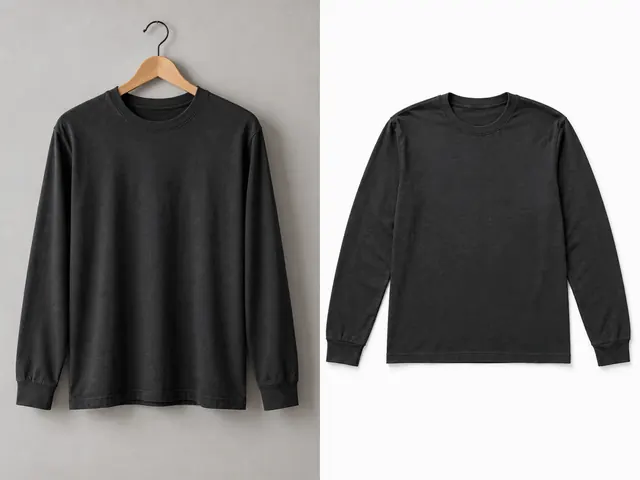
AI Flat Lay Photography Generator
Turn one clothing photo into a clean top-down flat lay.
Open tool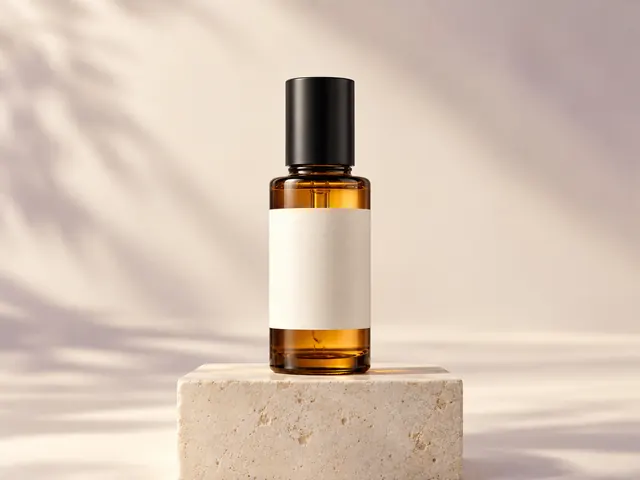
AI Product Video Generator
Turn one product photo into a vertical or square MP4 with a gentle camera move.
Open tool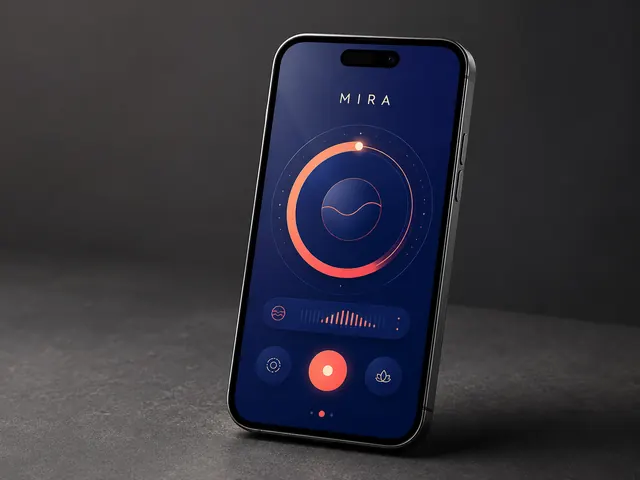
AI Mockup Generator
Place one uploaded design on a device, package, shirt, or tote with an editable AI scene brief.
Open tool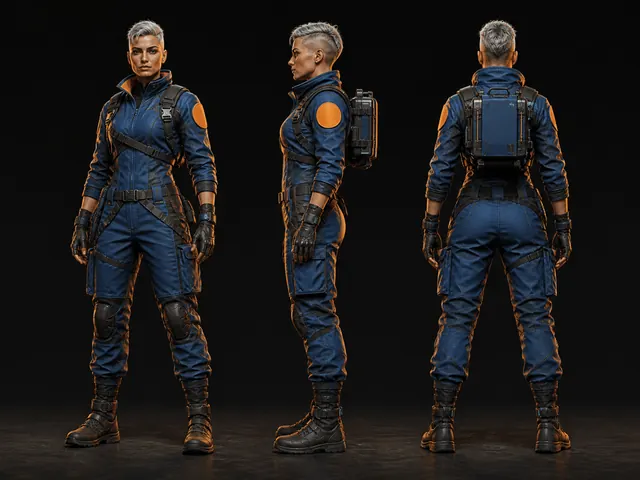
AI Character Generator
Create original characters from prompts, styles, and optional references.
Open toolEdit
Change what is already inside a picture, whether that means swapping the backdrop, erasing a distraction, or repainting one region with the AI Image Editor and Object Remover.
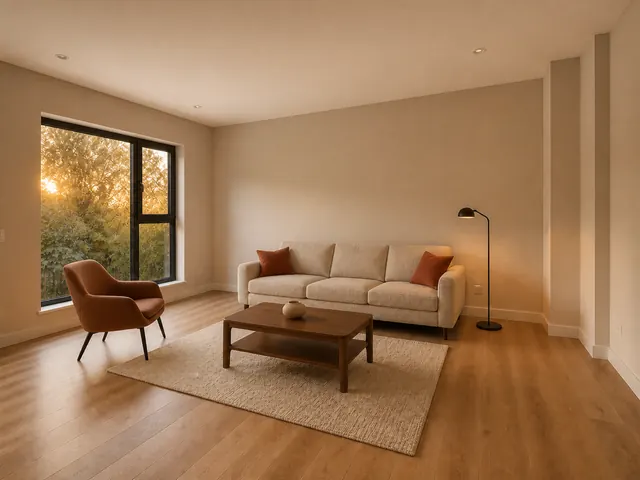
AI Image Editor
Edit any image with prompts, ordered references, and 4K output.
Open tool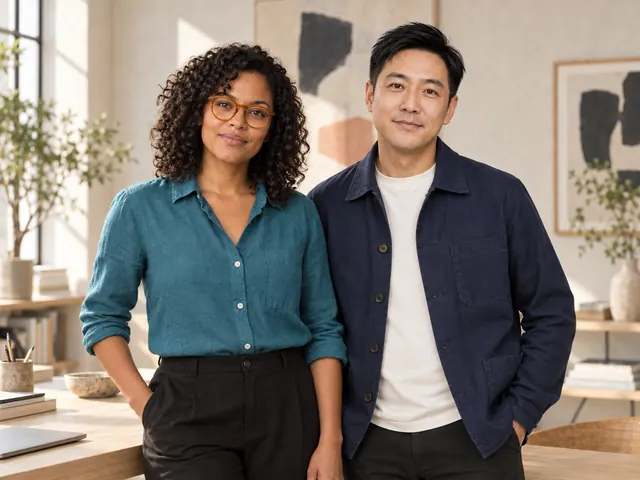
AI Image Combiner
Combine two or three source photos into one new image.
Open tool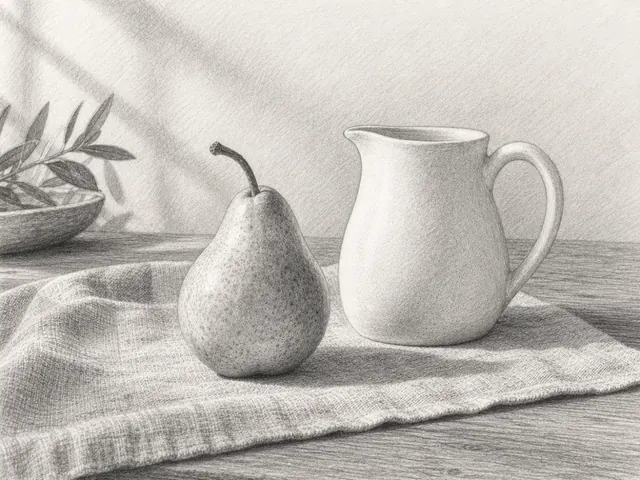
Photo to Sketch
Turn one photo into a pencil or charcoal sketch.
Open tool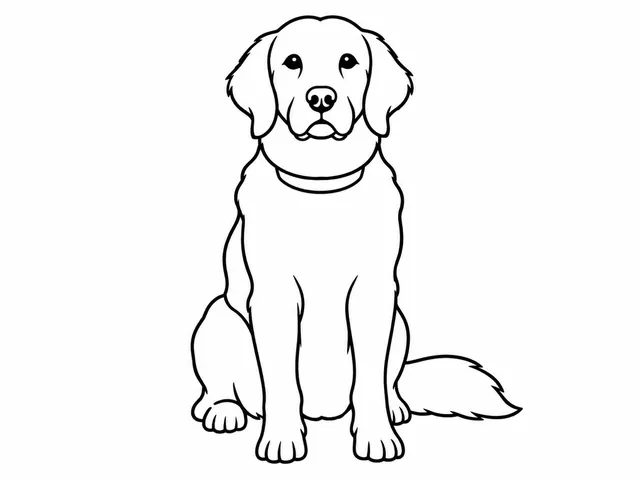
Photo to Coloring Page
Turn one photo into a printable coloring page with A4 or Letter preview.
Open tool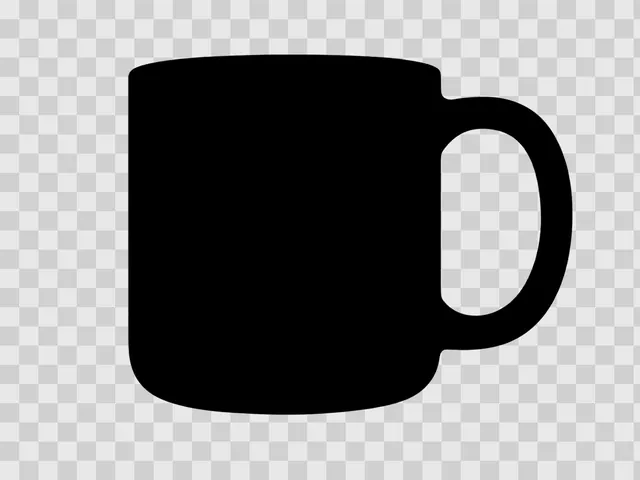
Silhouette Maker
Turn one photo into a solid or outline silhouette PNG with a transparent background.
Open tool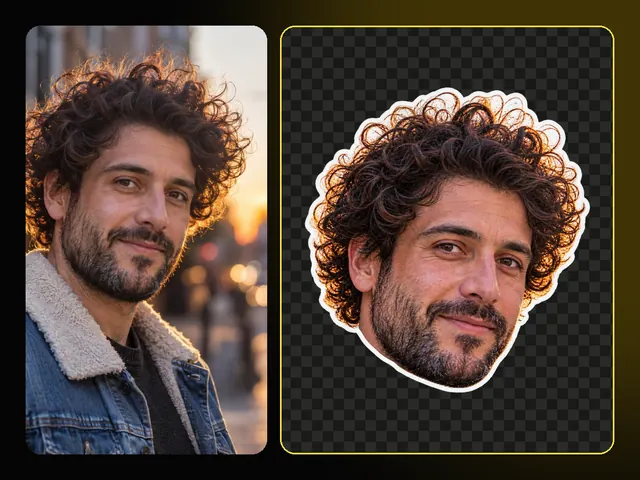
Face Cutout
Cut the head out of one portrait as a transparent PNG, with hair, hats, and earrings kept.
Open tool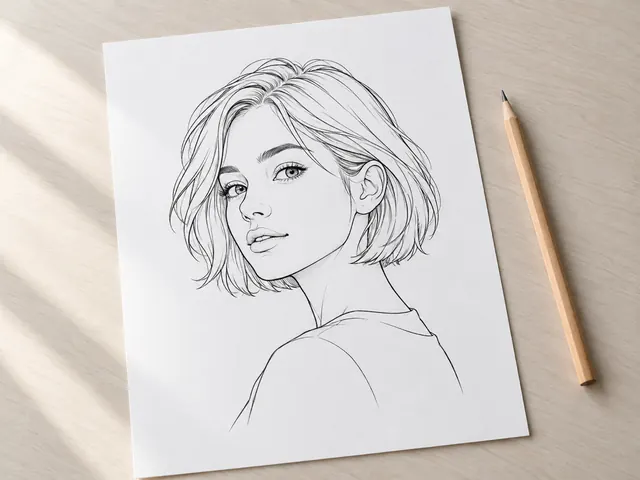
Photo to Line Drawing
Turn one photo into a clean or detailed black-and-white line drawing on white or transparent paper.
Open tool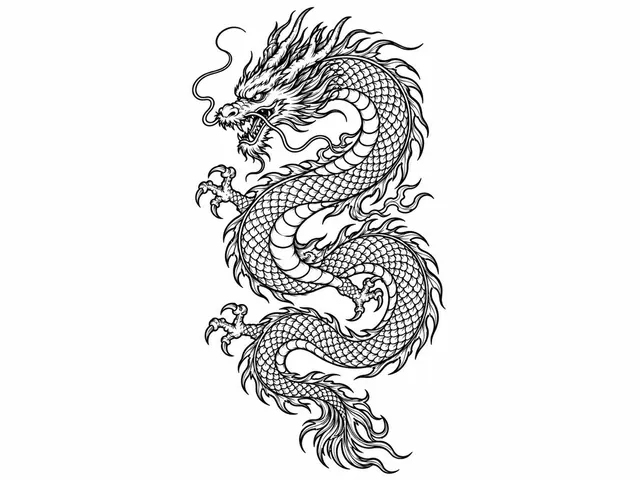
Tattoo to Stencil
Extract existing tattoo artwork as clean stencil lines, preserve its original colors, or refine a faded design.
Open tool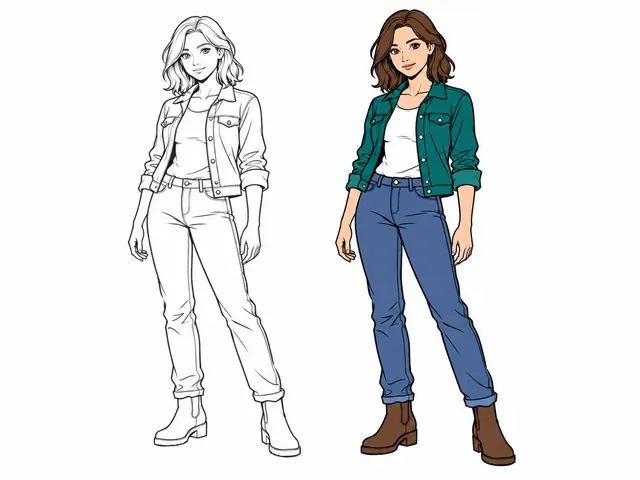
AI Line Art Colorizer
Colorize line drawings with flat or soft-shading color while keeping the original outlines.
Open tool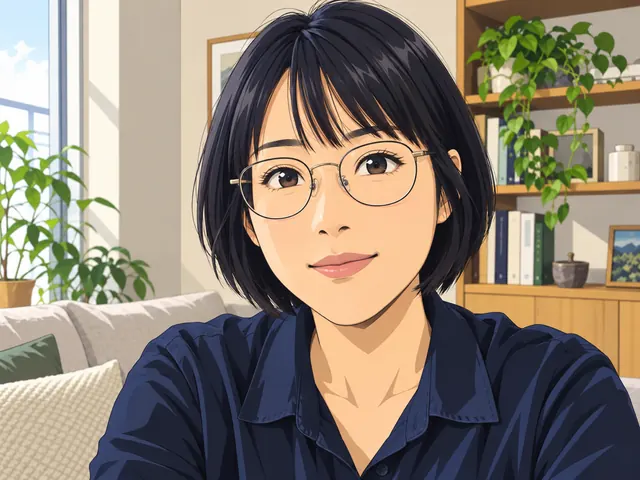
Photo to Anime
Turn one photo into a Japanese anime look with cel, soft illustration, or vintage color.
Open tool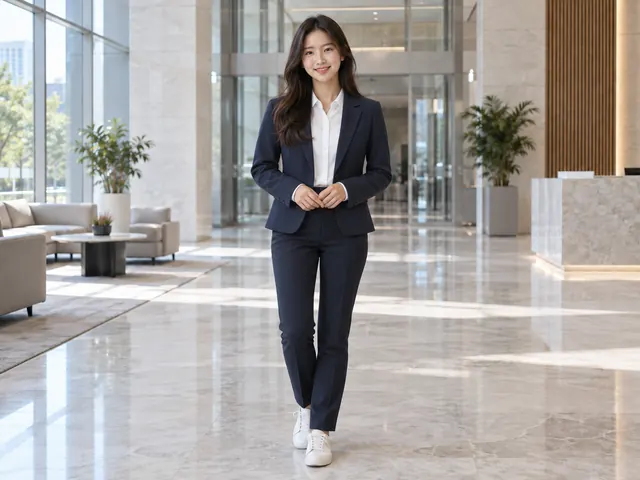
AI Clothes Changer
Change clothes in a photo. Keep face, pose, and background.
Open tool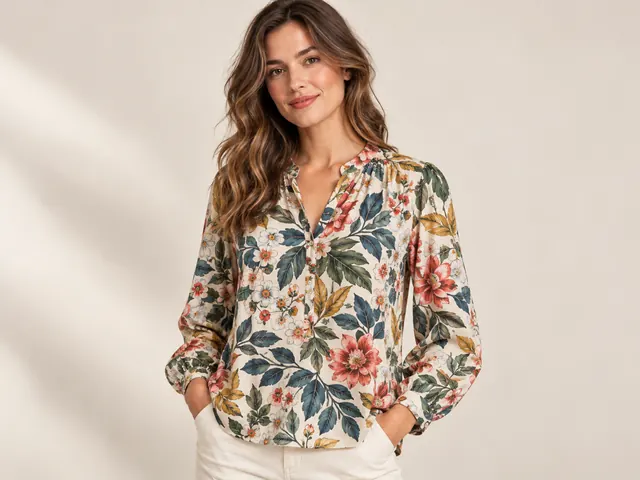
AI Fashion Model Generator
Put one clothing SKU on an adult model for a storefront image.
Open tool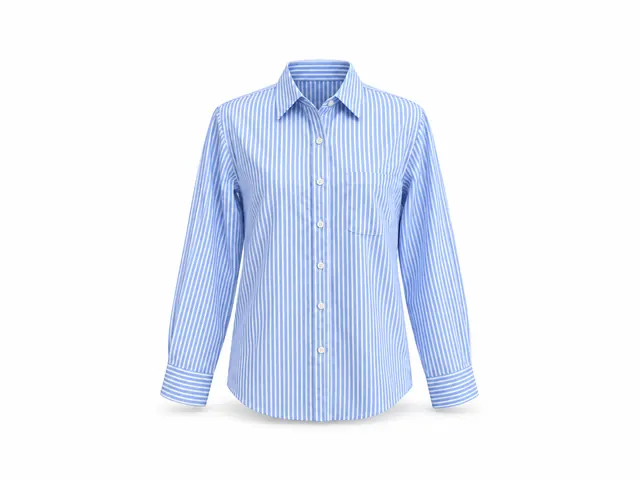
AI Ghost Mannequin
Turn a clothing photo into a hollow invisible mannequin product image for listings.
Open tool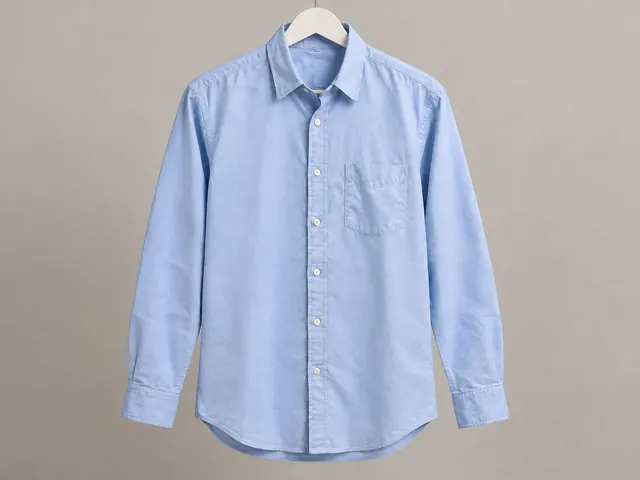
Remove Wrinkles from Clothes
Reduce clothing wrinkles while preserving fabric texture, seams, prints, fit, and natural folds.
Open tool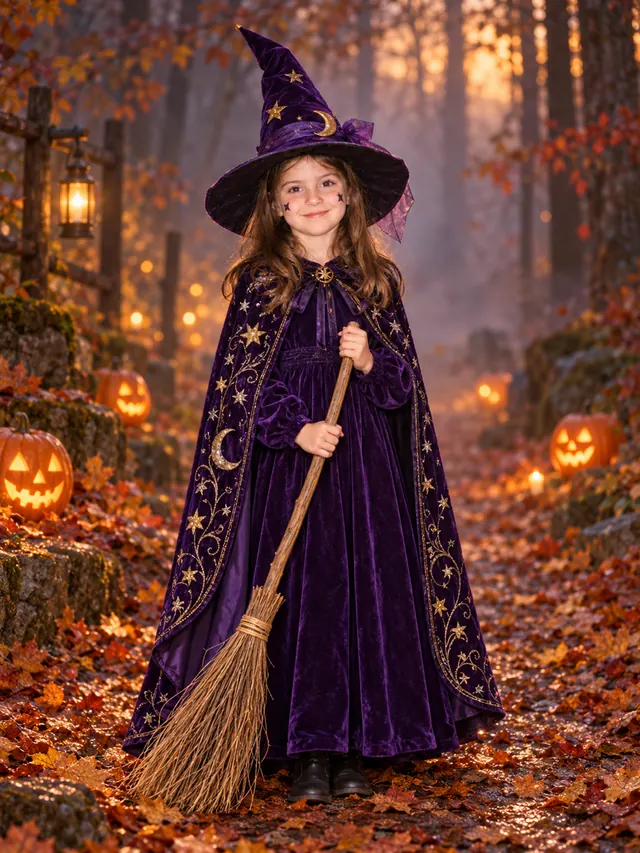
I'm Sorry I Lied Costume AI
Redo a childhood Halloween costume from an old photo, then export a 9:16 before-and-after slideshow.
Open tool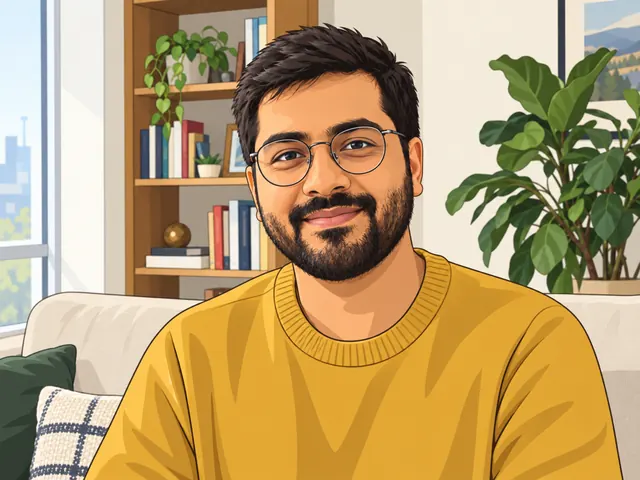
Photo to Cartoon
Turn one photo into a flat, comic-block, or soft 3D cartoon while keeping identity.
Open tool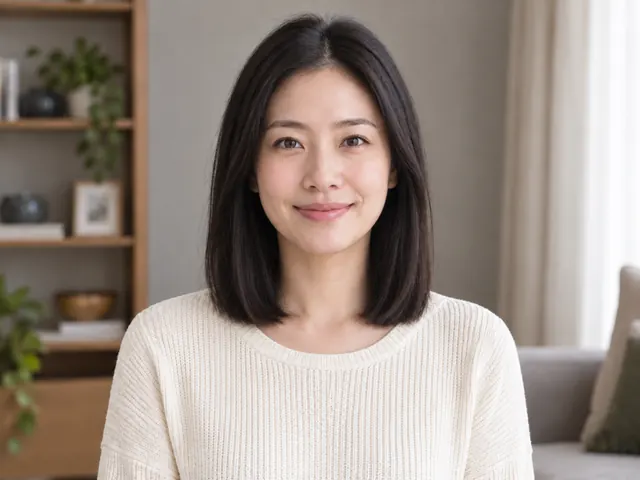
AI Hairstyle Changer
Try short, shoulder-length, long, or curly hair on one photo while keeping the face.
Open tool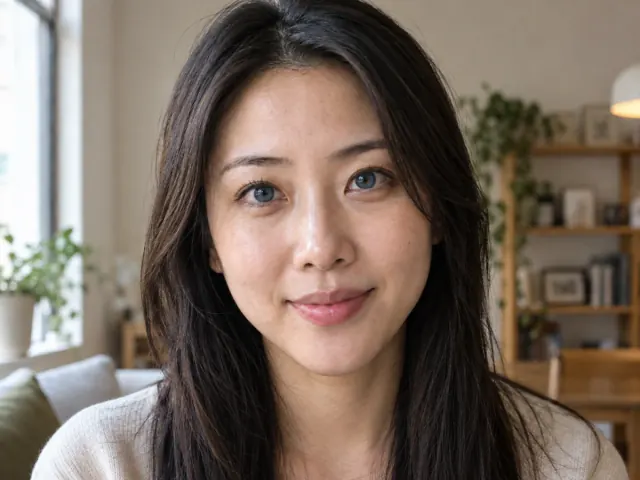
AI Eye Color Changer
Try blue, green, hazel, gray, amber, or brown eyes on one portrait while keeping pupils and face.
Open tool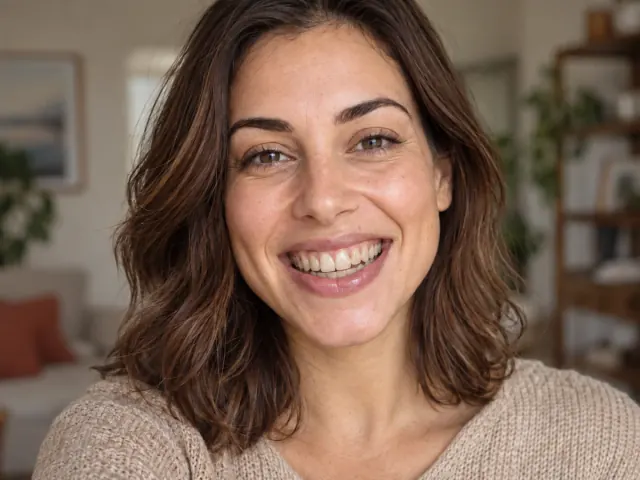
Whiten Teeth in Photo
Brighten the teeth in one smile photo without changing tooth shape, lips, gum line, or face.
Open tool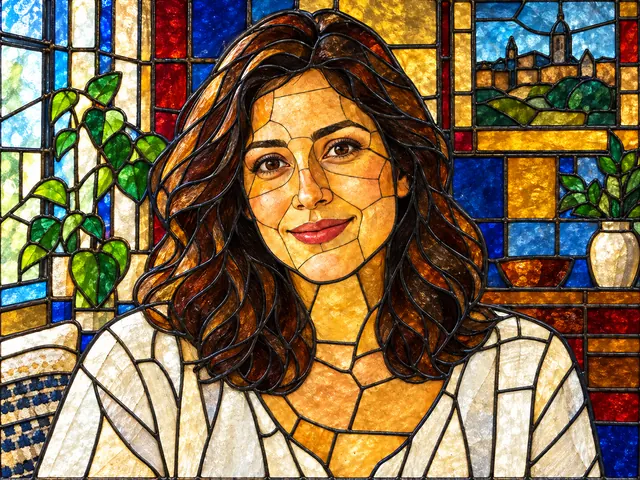
Stained Glass Effect
Turn any photo into a stained glass panel with leaded panes, jewel tones, and a glowing backlit look.
Open tool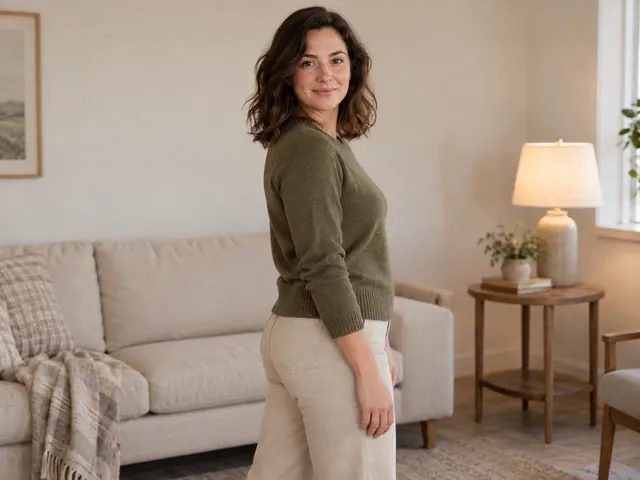
AI Pose Changer
Change the pose in a photo. Keep face, clothes, and subject count.
Open tool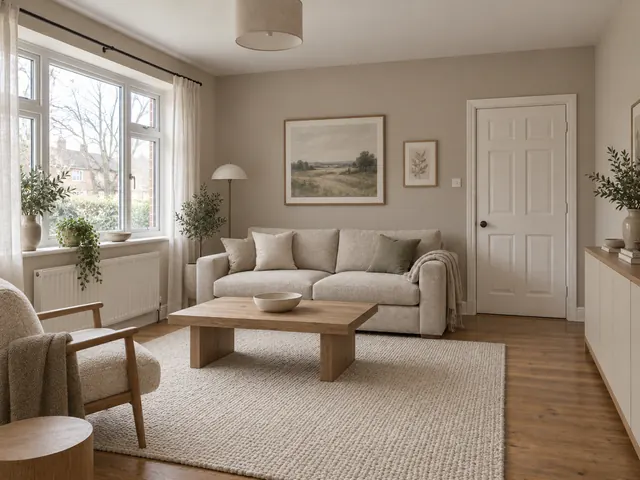
AI Interior Design
Restyle one room photo for living room, bedroom, or study in modern minimal, Nordic, or natural wood.
Open tool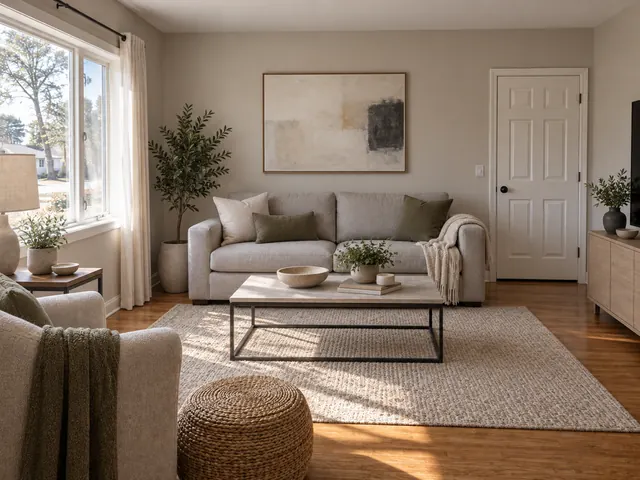
AI Room Design
Compare two styles on one room photo. Upload once, generate A and B, then download the look you keep.
Open tool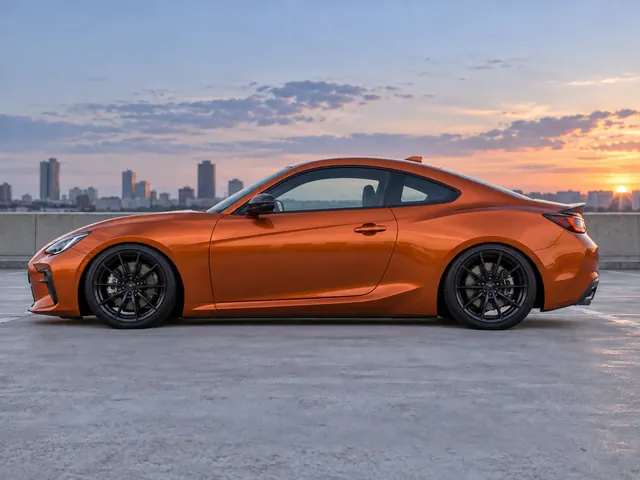
Car Lowering Visualizer
Preview a mild, street, stance, or slammed drop on your car photo while keeping body, wheels, paint, and background.
Open tool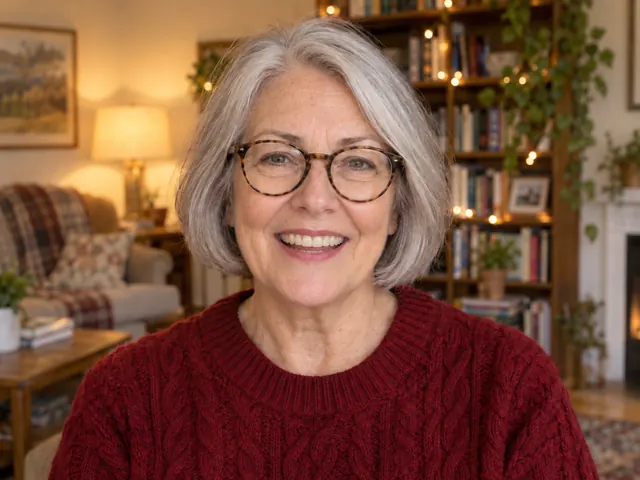
AI Facial Expression Changer
Change the expression in one portrait to a natural smile, big smile, neutral, or surprised look while keeping the same person.
Open tool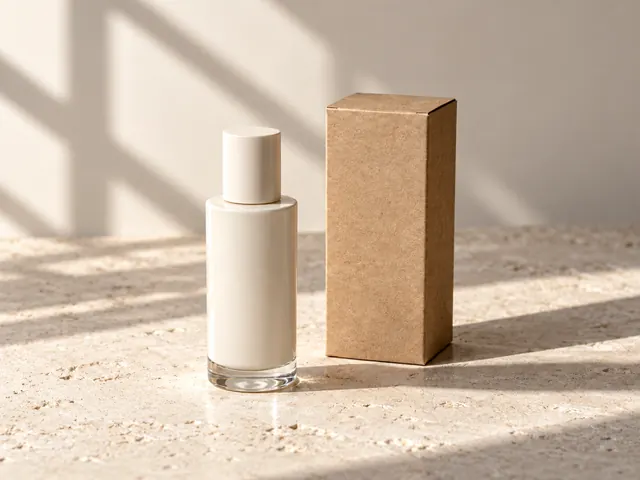
Image to Prompt
Upload one image and get an editable English prompt.
Open tool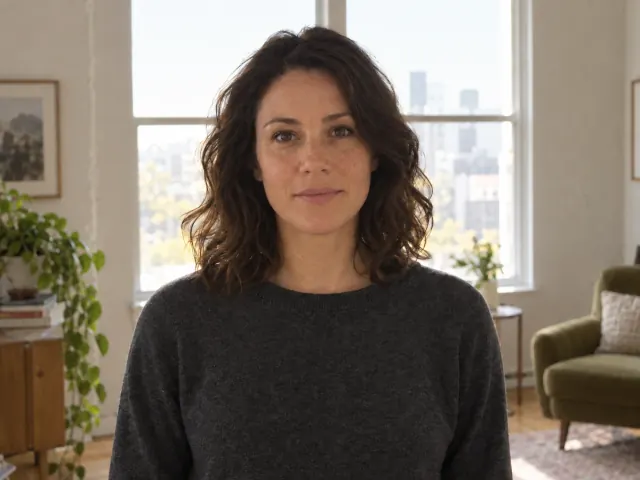
AI Photo Relight
Change light direction on one photo with soft front, side, or warm natural light.
Open tool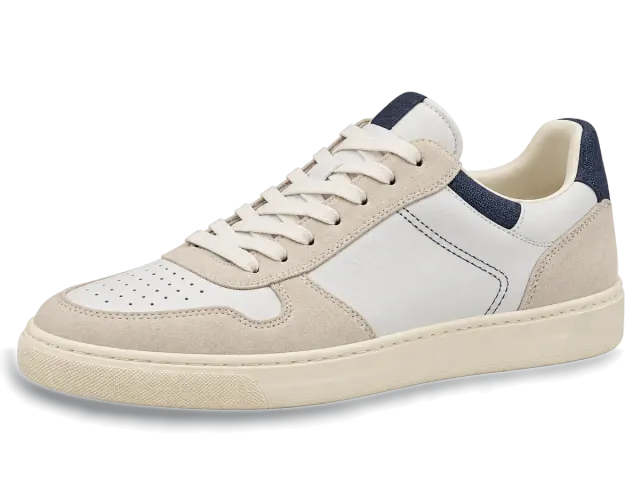
AI Shadow Generator
Add a grounded contact or soft drop shadow to one product photo.
Open tool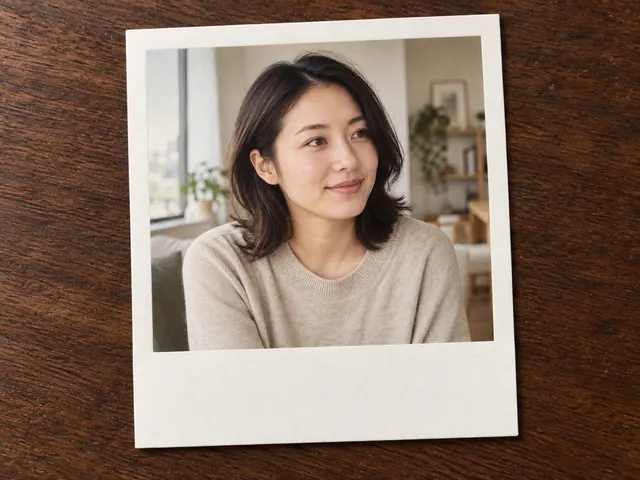
Polaroid Photo Filter
Turn one photo into an instant-style print with a white frame.
Open tool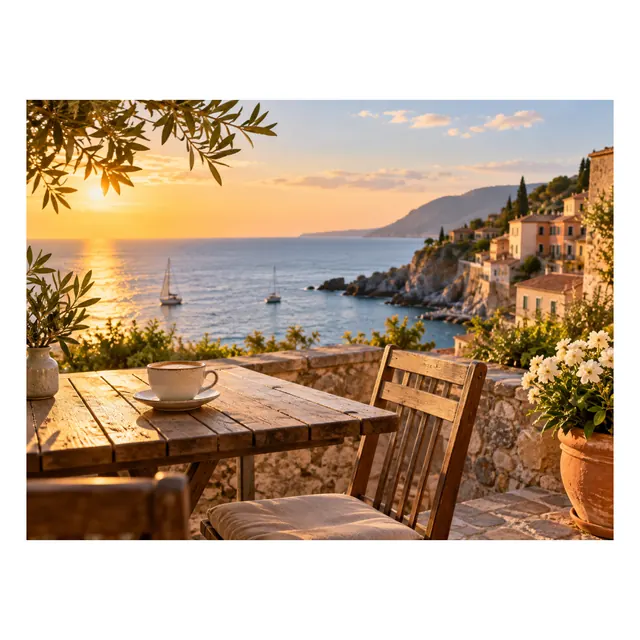
Add Border to Photo
Add a measured canvas border with expand or overlay, then download.
Open tool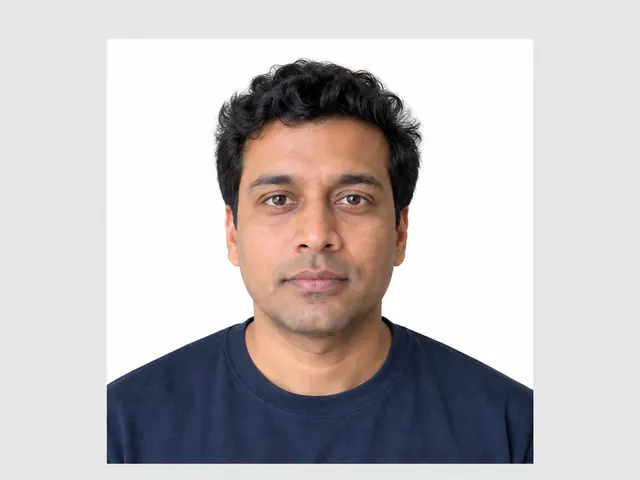
Passport Photo Maker
Crop one portrait to a country spec and download a 300 DPI photo and print sheet.
Open tool
Logo Resizer
Resize one logo to exact favicon, avatar, and social sizes with transparent padding.
Open tool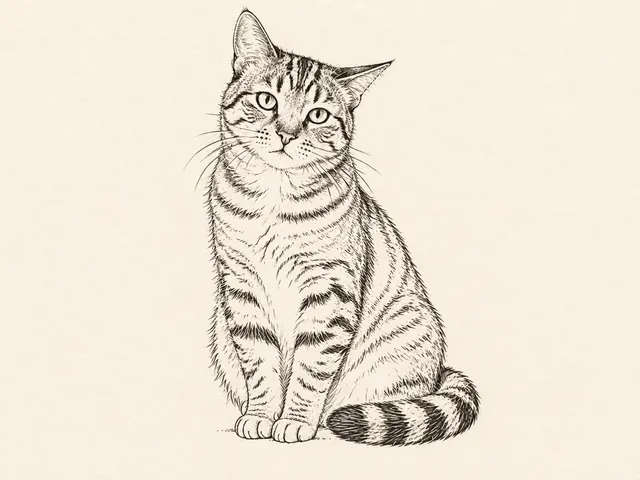
Image to Tattoo Converter
Turn a pet or flower photo or sketch into a tattoo design while keeping the subject recognizable.
Open tool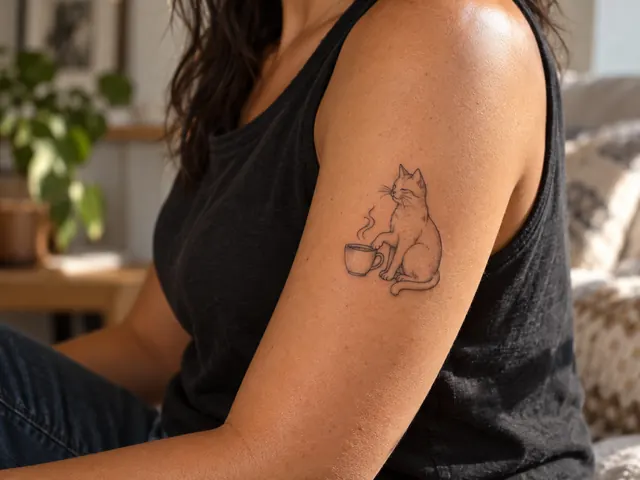
Virtual Tattoo Try On
Place your design on a body photo, adjust it for free, and choose optional AI skin blending.
Open tool
Blur Photo Background
Keep the subject sharp and locally blur the scene behind it.
Open tool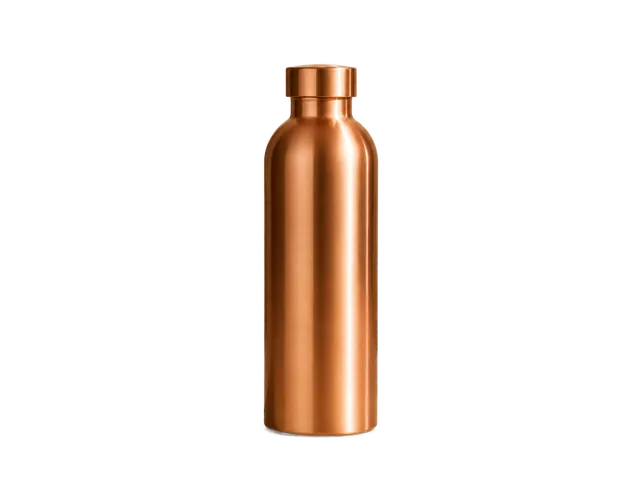
Background Remover
Remove image backgrounds and download transparent PNGs.
Open tool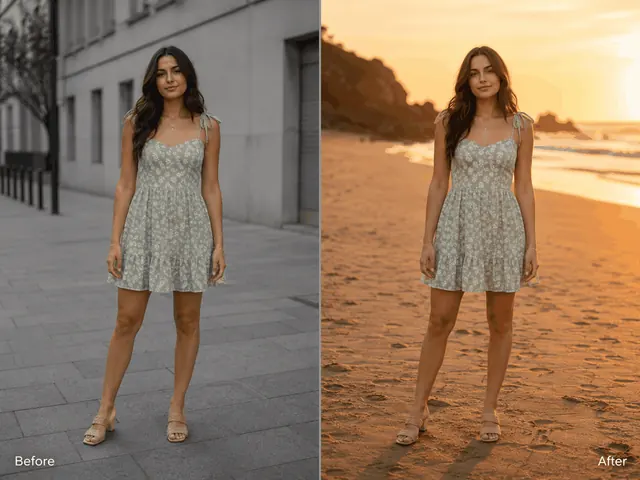
AI Background Changer
Replace a photo background with a preset scene, a colour, a description, or a reference photo.
Open tool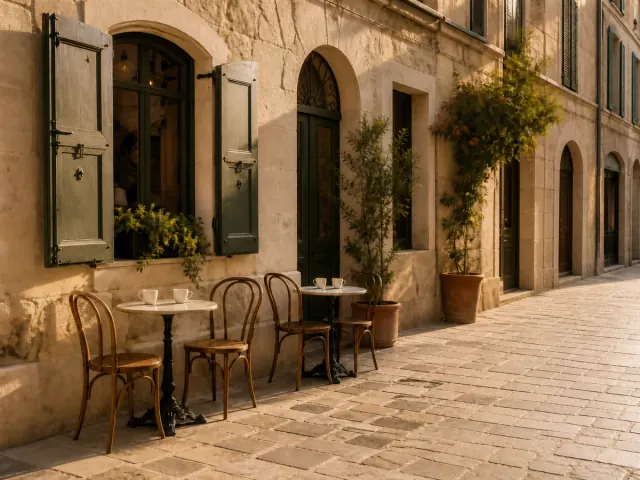
Object Remover
Brush over unwanted objects and reconstruct the selected area.
Open tool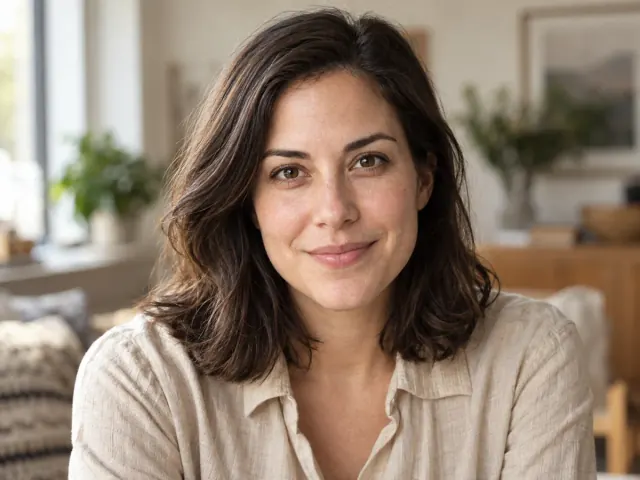
Remove Emoji from Photo
Brush each emoji or sticker, choose what it covers, and rebuild only that area.
Open tool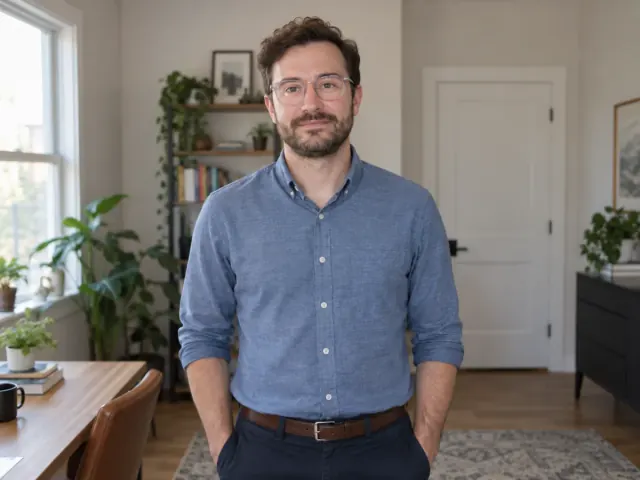
Remove Glare from Photo
Brush lens, window, screen, or packaging glare, choose the surface, and rebuild only that hotspot.
Open tool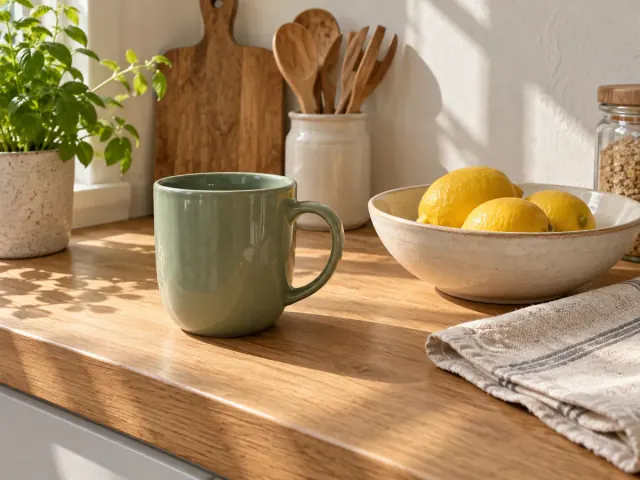
Remove Scribbles from Photo
Brush pen marks or screenshot markup, reconstruct that region, and keep every unselected pixel.
Open tool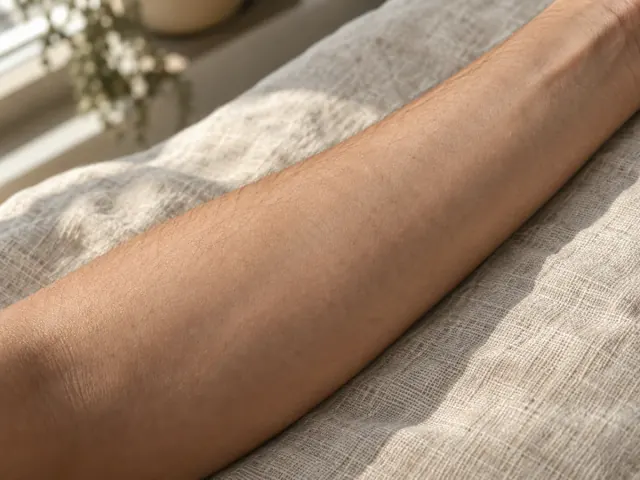
Remove Tattoo from Photo
Mark the tattoo ink, reconstruct skin in that region, and keep every unselected pixel.
Open tool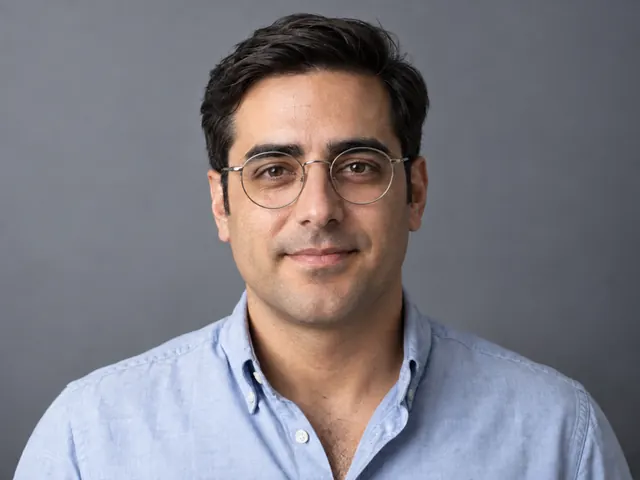
Remove Beard From Photo
Erase a beard, mustache, or stubble from one portrait, rebuild the jawline and skin, and keep the same person.
Open tool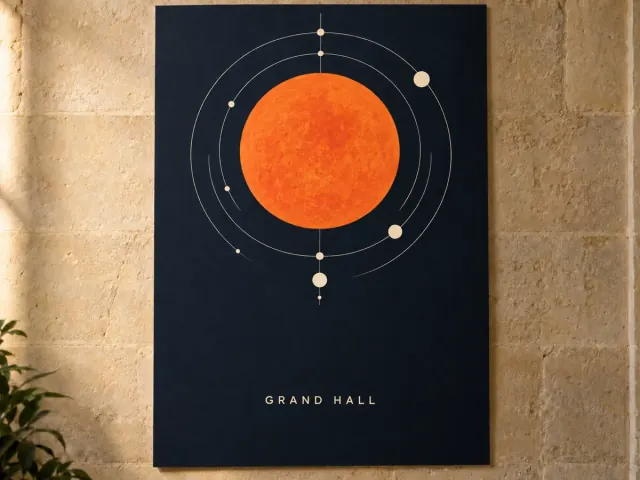
Remove Text from Image
Mark the letters you own, reconstruct only that background, and keep every unselected pixel.
Open tool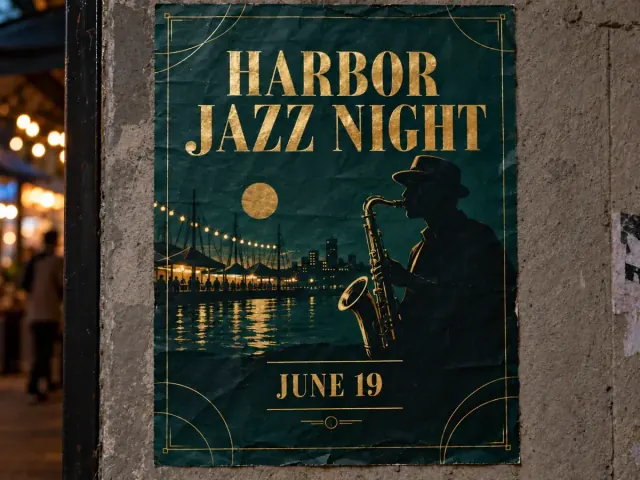
Edit Text in Image
Box one flattened line, type the replacement, and download a file that contains those exact characters.
Open tool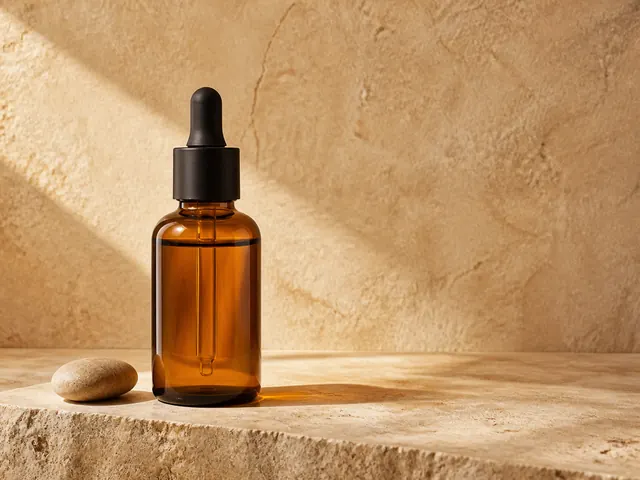
Remove Watermark
Remove authorized watermarks with AI reconstruction.
Open tool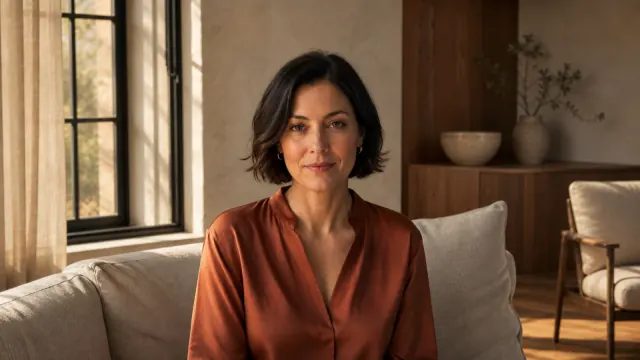
Uncrop & Expand
Expand an image beyond its original frame.
Open tool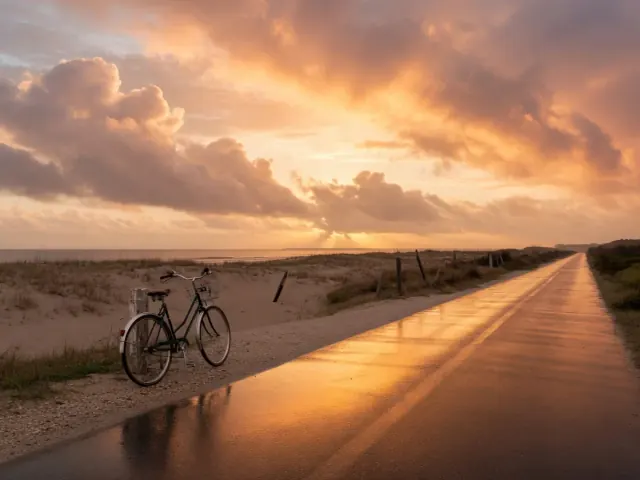
Generative Fill
Paint a region and fill it with a prompt.
Open toolEnhance
Rescue a file that looks too soft or arrives too small for the size you need, using the Image Upscaler to enlarge a source or the Photo Enhancer for a clarity pass that also doubles the size.
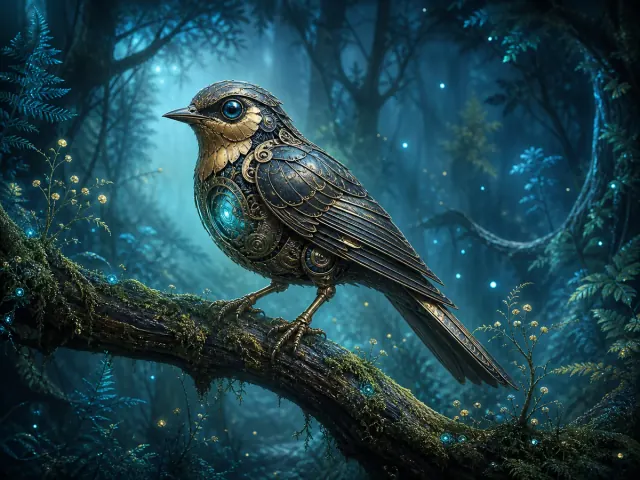
Image Upscaler
Enlarge images 2x or 4x and compare the result.
Open tool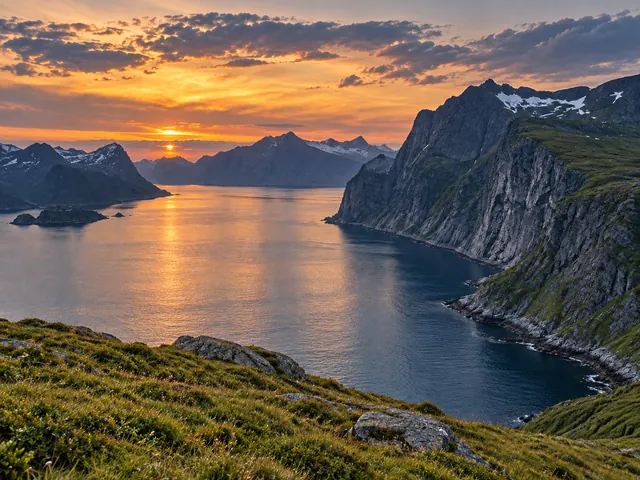
4K Image Upscaler
Enlarge an image so the longest side is at least 3,840 pixels via 2× or 4× and download the real processed file.
Open tool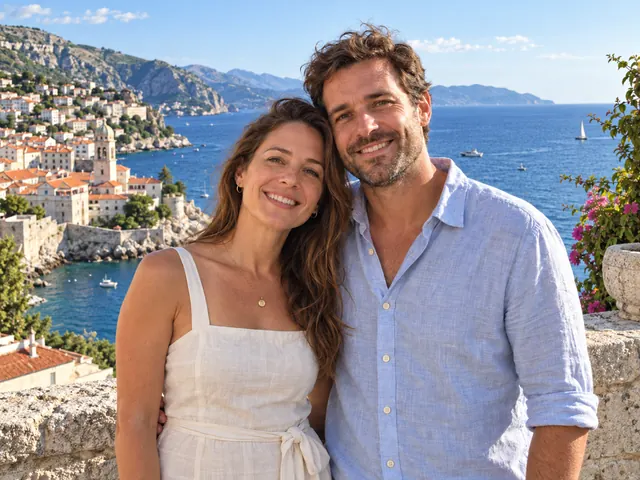
Image Upscaler for Printing
Calculate print pixels from size and DPI, then enlarge only when needed.
Open tool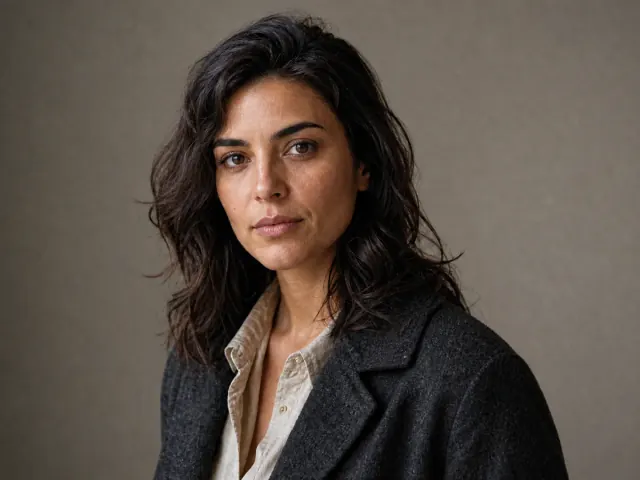
Photo Enhancer
Improve photo clarity and get it back at 2× the size.
Open tool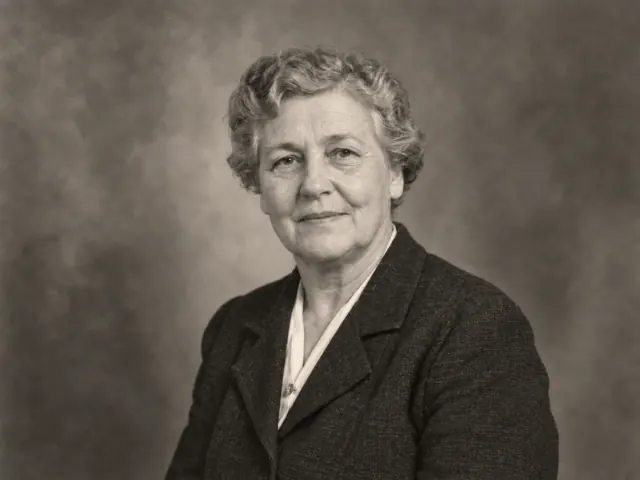
Photo Restoration
Restore old photos online with conservative restoration or GPT Image 2.5.
Open tool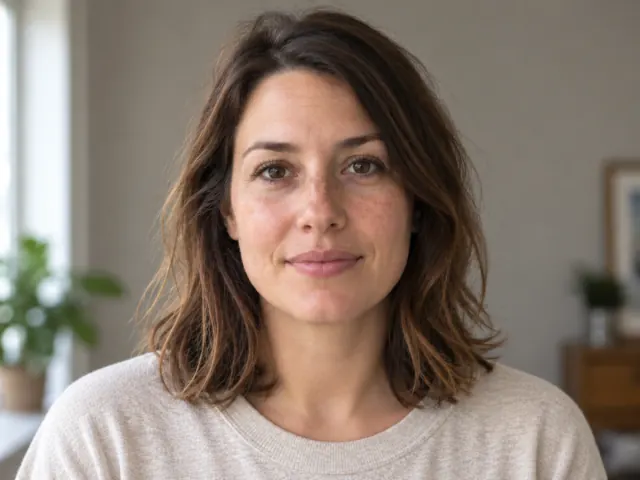
Unblur Image
Reduce mild focus and short motion blur in one photograph.
Open tool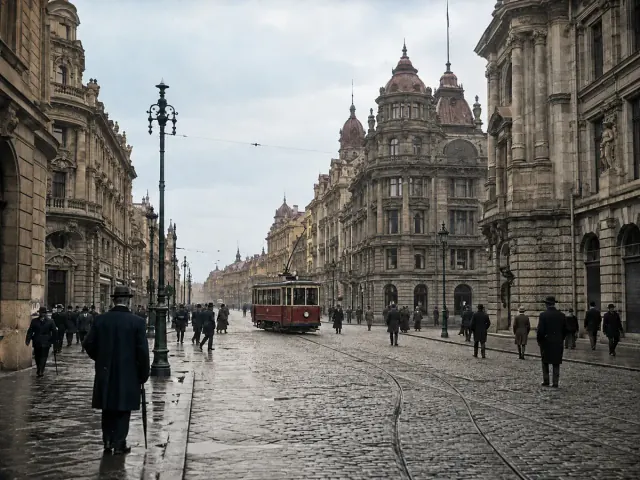
Image Colorizer
Add plausible natural color to black-and-white photos and compare the result.
Open tool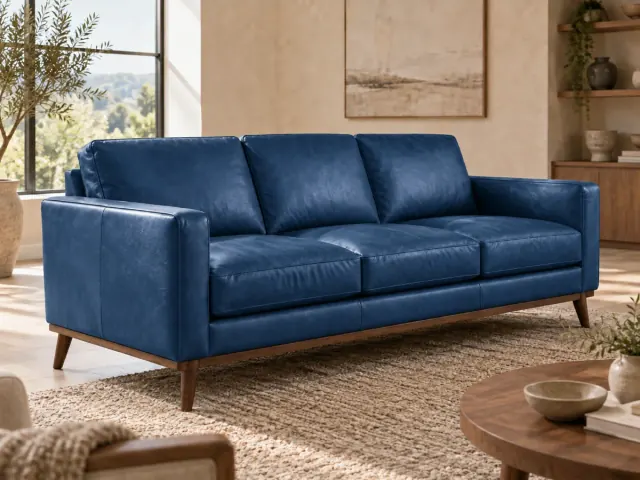
Recolor Image
Change one object's color in a photograph with HEX or a palette.
Open tool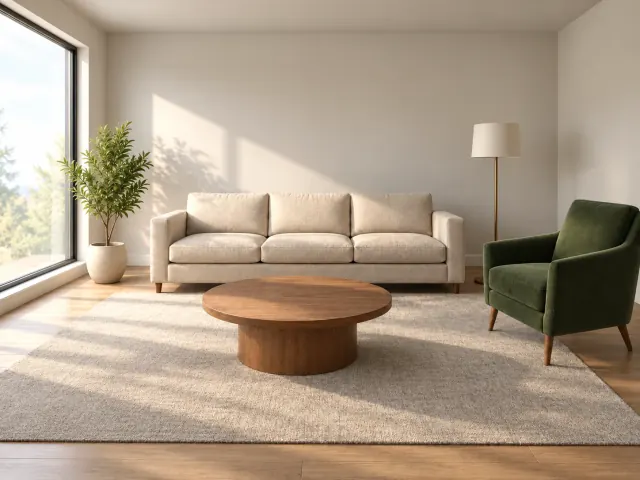
AI Image Humanizer
Remove an AI look from one generated photo with a tracked realism preset.
Open tool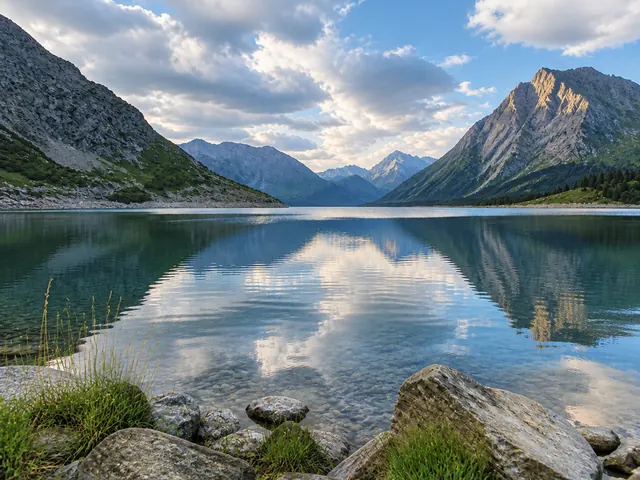
Remove Filter from Photo
Reduce a color cast, beauty-smoothing finish, or heavy grade on one photo.
Open tool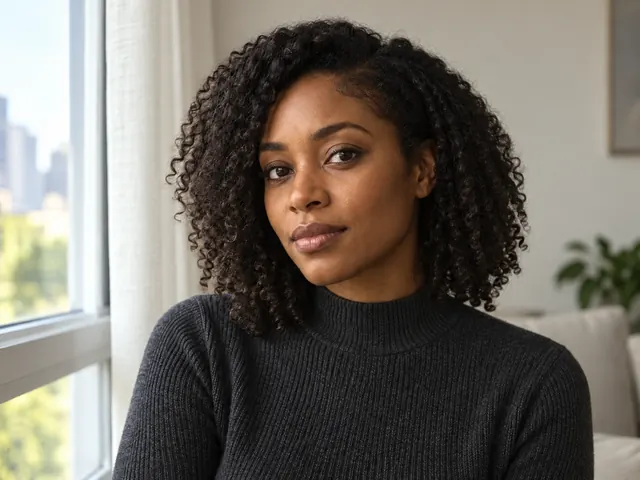
Remove Matcha Filter from Photo
Reconstruct natural color from a matcha-styled still.
Open toolVideo
Put a scene in motion or rebuild a low-resolution clip, from Text to Video AI and Image to Video AI through to the Video Upscaler.
AI Video Generator
Create short videos from text or images, with clear credits and tracked results.
Open tool
URL to Video
Turn a public webpage into a reviewed brief and a short video.
Open tool
Text to Video AI
Turn prompts into short videos with duration, ratio, and resolution controls.
Open tool
Image to Video AI
Animate a start image with an editable motion prompt and optional end frame.
Open tool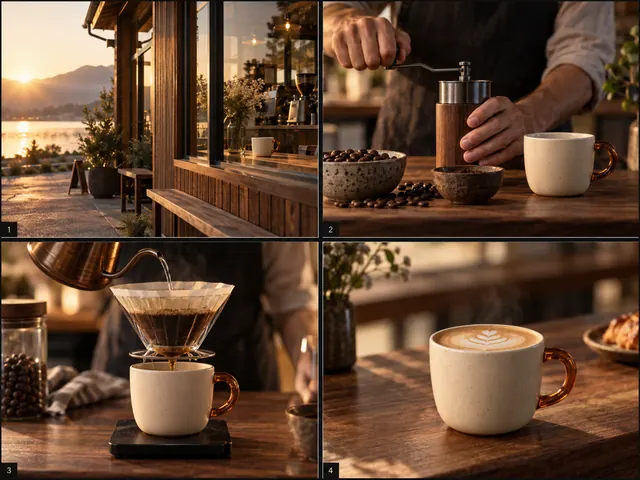
AI Storyboard Generator
Plan 3–6 editable shots, generate still reference frames, and export the board and frame ZIP.
Open tool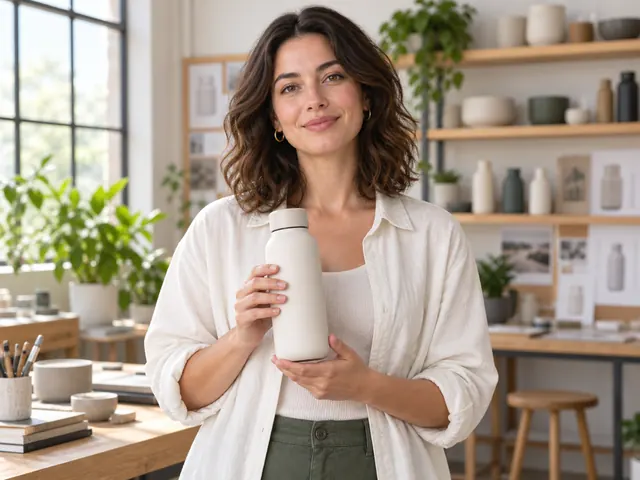
AI Talking Photo
Lip-sync a still photo to an uploaded audio track at 720 or 1080.
Open tool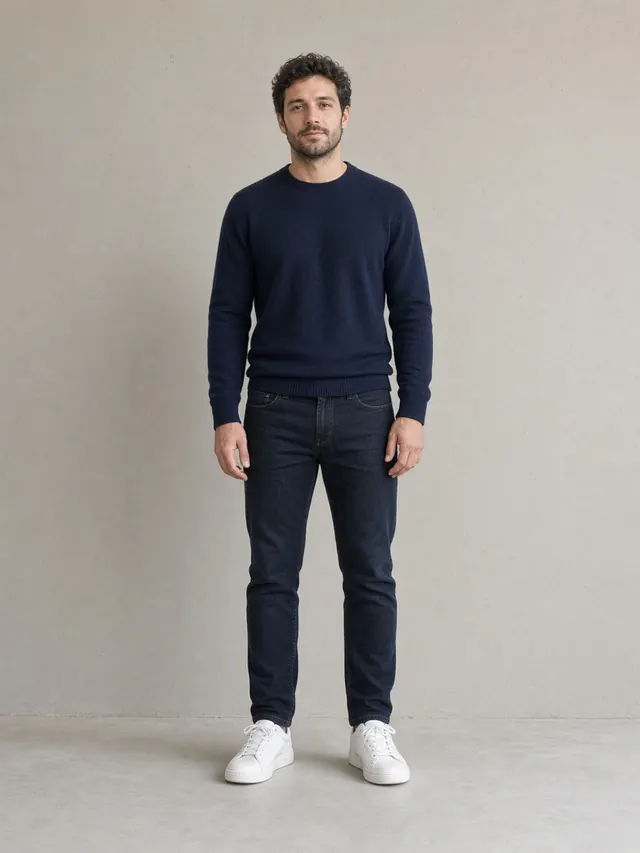
AI Dance Generator
Turn one full-body photo into a silent 5-second dance clip.
Open tool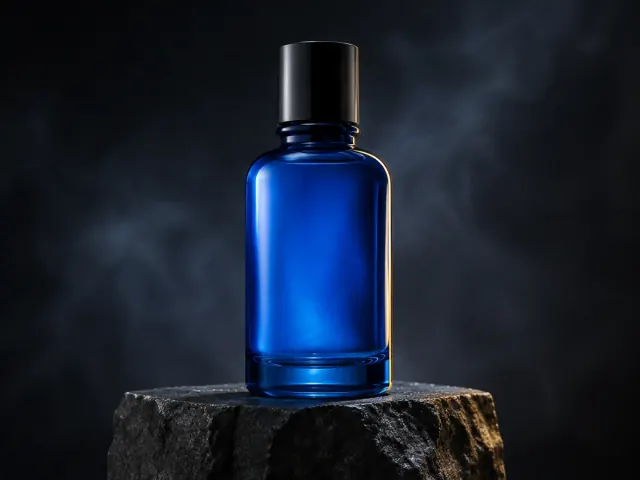
AI Video Editor
Edit product colors and video backgrounds with a prompt.
Open tool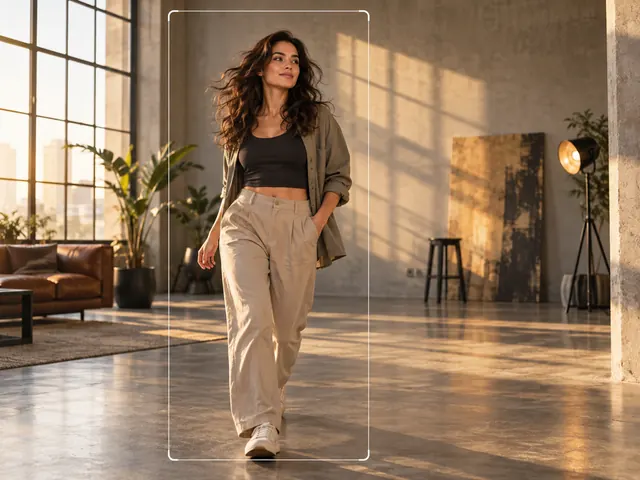
Landscape to Portrait Video
Reframe a landscape clip for a portrait feed with a focus point.
Open tool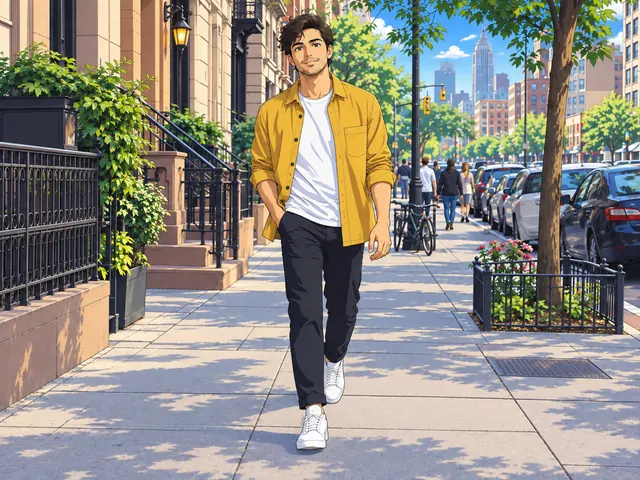
Video to Anime
Restyle a short real clip as Japanese anime.
Open tool
Video Object Remover
Remove a named object from a short clip and keep original audio.
Open tool
Remove Subtitles from Video
Strip subtitle tracks for free or reconstruct burned-in captions.
Open tool
Video Watermark Remover
Remove a described watermark from a short authorized clip and compare the reconstruction.
Open tool
Video Upscaler
Enlarge short clips 2x or 4x and download the result.
Open tool
AI Video Restoration
Reduce noise and compression artifacts on short digitized clips at original size.
Open tool
AI Video Denoiser
Remove grain and low-light noise from a short clip at original resolution.
Open tool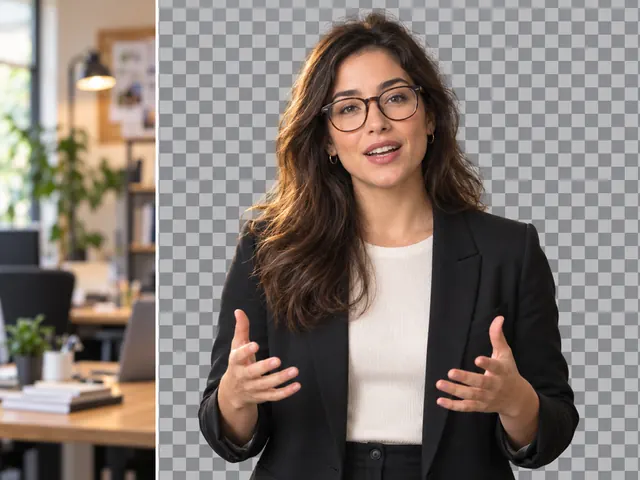
Video Background Remover
Remove a short clip's background without a green screen and keep the original audio.
Open tool
Remove Background Music from Video
Isolate speech from a short mixed video and export the cleaned clip.
Open toolFind the right AI tool in one step
Match what you already have against what you need next, then work from the matching group in the full list of AI image tools on this page.
Start from a blank canvas
You have a brief and nothing else. Create turns a written description into logo concepts, characters, product scenes, and thumbnail candidates.
Fix an existing photo
The shot is nearly right but something has to go or change. Edit handles background swaps, object and watermark removal, uncropping, and prompt-driven fills.
Make it sharper or bigger
The composition works and only the pixels are letting it down. Enhance enlarges a source by your chosen factor, or lifts clarity in a single 2× pass.
Turn images into motion
A still will not carry the message. Video builds clips from a prompt, animates a start frame towards an optional end frame, and enlarges short footage.
AI tools FAQ
Straight answers on credits, where your uploads and results live, accepted formats and limits, chaining one tool into the next, and how new tools show up here.
Are these AI tools free?
No, these are credit-based tools rather than free ones. Every run spends credits and needs a signed-in account, and a new account may start with a welcome credit balance while that offer is running. Beyond that, credits come from a plan or a one-off bundle on the pricing page. Uploading a file, changing settings, and previewing your source cost nothing, each workbench prints the credit cost of the run on its own action button, and your remaining balance sits on the credits page in settings.
Are the images I upload kept anywhere?
Yes. Your upload is stored so the run can read it, and every result is saved to your account and listed under My Creations, where you can replay an entry, copy a share link, or delete one you no longer want. Bear in mind that the media file itself sits at a direct URL, so anyone you pass that link to can open it without signing in. Nothing is published as an example on this site unless we ask you first, and the privacy policy covers the rest before you send anything sensitive.
Which file formats and sizes are supported?
Image tools take one JPG, PNG, or WebP, with per-tool ceilings on file size, megapixels, and the shortest and longest side. Video inputs differ by tool: Video Upscaler is the one that accepts a clip, as MP4 or MOV, while Image to Video starts from a still frame and Text to Video asks for nothing but a prompt. Each workbench prints its own limits above the upload area, so check them there instead of assuming a single rule applies everywhere.
Can I run several tools on the same image?
Yes, and chaining is often the fastest route to a finished asset. A common sequence is Background Remover for a clean cut-out, then AI Background Changer for the new scene, then Image Upscaler for a print-sized file. Every step is its own task with its own credit cost, and nothing is handed over automatically: download the output, or pull it back from My Creations, then upload it as the source for the next tool.
How often do new tools appear here?
Tools ship when a workspace is finished rather than on a fixed release calendar, so the pace varies. Whenever one goes live it is added to the navigation menu and to this directory together, which is why bookmarking this page beats watching individual tool pages for announcements.
Start creating with Banana Pro AI
Reading a list only gets you so far. Open the generator, write a prompt or bring in a source file, confirm the credit cost on the button, and every run is kept in My Creations.